A sales rep needs to send a customer list to a partner. An engineer wants to take a drawing to a supplier on a USB drive. Someone pastes a contract into an AI tool to get a quick summary. These are everyday tasks, but each raises the same question: is this information safe to share this way?
DLP policies help your team answer that question before a file leaves the company. It explains what needs protection and which sharing methods are allowed. It also gives employees a way to request approval when a task falls outside the rules. Below, you'll find a policy template you can adapt, 12 practical DLP policy examples, and a rollout plan that gives employees time to adjust.
Key takeaways
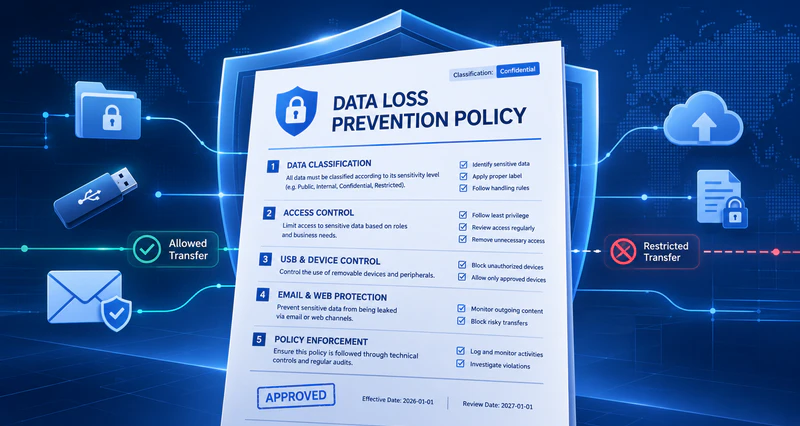
- A DLP policy defines sensitive data, permitted uses, approved channels , and responses to violations.
- Build the written policy around ten sections, including classification, exceptions, employee notice, and review.
- Translate each requirement into a condition, an action, and an audit record.
- Roll out in stages: monitor, warn, pilot blocking, and then expand enforcement.
What is a DLP policy?
A DLP policy sets the rules for handling sensitive data. It defines what needs protection, who can use it, and where it can be shared. It also explains what happens when someone breaks a rule. DLP tools put these requirements into practice through logging, warnings, blocking, and encryption.
Think of a confidential file being copied to a USB drive. Your policy says it can only be shared through approved channels. A rule tells the system to block copies to unapproved drives. The tool checks the attempt, blocks it, and saves a record. Keeping these three pieces aligned makes the policy easier to put into practice. For background, see what data loss prevention is.
In Microsoft 365, “DLP policy” also refers to a technical policy configured in Microsoft Purview. It is one implementation of your organization's broader requirements. Microsoft explains the configuration and deployment options in its DLP policy guide.
What a DLP policy should include
A useful policy should help an employee decide how to share a file and help IT decide what to allow. These ten sections cover the questions both teams will need answered:
- Purpose and scope: Which people, devices, systems, data, and locations are covered?
- Data classification: What makes information Public, Internal, Confidential, or Restricted?
- Roles and responsibilities: Who owns the policy, classifies data, operates controls, and follows the requirements?
- Data handling: Where may each class be stored, shared, or processed?
- Technical controls: Which channels require monitoring, approval, blocking, or encryption?
- Monitoring and enforcement: What is recorded, who may access records, and how long are they retained?
- Incident response: Who investigates alerts, and how quickly must they respond?
- Exceptions: Who approves exceptions, what safeguards apply, and when do they expire?
- Training: When do employees receive instructions and acknowledge updates?
- Review: When is the policy reviewed, and what changes trigger an earlier review?
Free DLP policy template (Word)
You don't need to start with a blank page. The editable Word template covers all ten sections above. Sample clauses and short notes help you adapt it to your business. It also covers employee notices, log retention, and exception approvals.
Fill in your company details and choose the sharing channels your teams use. Then assign owners and set response times. Check that the requirements match your actual workflows and the controls you plan to deploy.
Data classification levels for your DLP policy
Before you decide what to block, decide what you're protecting. Four classification levels are often enough to get started. Give employees familiar examples so they can recognize the difference between an internal announcement and a customer file that needs tighter controls.
| Level | Examples | Permitted channels | Suggested default action |
|---|---|---|---|
| Public | Published brochures, approved website content | Public and company-approved channels | Allow normal sharing |
| Internal | Internal announcements, routine procedures | Approved business systems and authorized users | Allow authorized use; log relevant transfers |
| Confidential | Customer lists, pricing, contracts | Approved storage and authorized recipients; approval for external sharing | Warn or require approval for external transfers |
| Restricted | Sensitive source code, design files, health or payment information | Explicitly approved systems and recipients with suitable safeguards | Block unauthorized transfer; encrypt approved flows where appropriate |
Adapt these examples to your business. Source code for a public project may be fine to share, while code for an unreleased product may need the highest level of protection.
You can use AnySecura to put these classification levels into practice. Its sensitive content inspection checks for keywords and number patterns to help identify sensitive information. Document tagging lets you apply labels automatically or manually. Together, these features help you identify which files need protection and apply handling rules based on their classification.
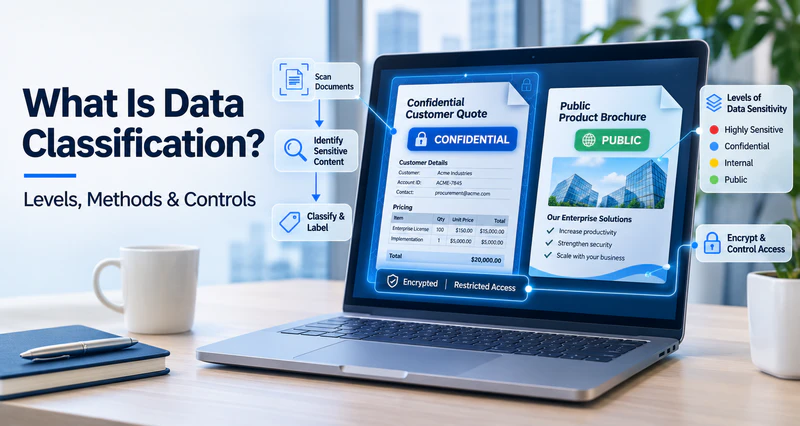
Learn how data classification works, explore common classification levels and methods, and understand how to protect sensitive business data. Learn more>>
12 example DLP policies you can adapt
DLP rules turn your written policy into specific actions, such as blocking a sensitive email attachment or stopping a file upload to an unapproved website. The 12 examples below cover common ways employees share data, from USB drives and email to printing and AI tools. Use them as a starting point, then adjust the conditions, actions, and exceptions to fit your business.
| Scenario | Trigger condition | Action | Exception |
|---|---|---|---|
| 1. Restrict USB copies | Copy to a device outside the approved inventory | Block and alert | Approved encrypted device for a defined task |
| 2. Control new storage devices | Unapproved device or transfer function becomes available | Disable the unapproved function | Time-limited authorization |
| 3. Protect personal data in email | Sensitive data sent to an unapproved recipient | Block or hold for approval | Authorized recipient and approved secure transfer |
| 4. Flag personal email transfers | Attachment exceeds your size limit and goes to a personal account | Warn and log; apply stricter sensitive-data rules when matched | Documented business need |
| 5. Restrict browser uploads | Upload to an unapproved service or account | Block and alert | Approved partner destination |
| 6. Control personal sync clients | Unapproved sync application runs on a managed device | Restrict application use | Approved business client and account |
| 7. Restrict messaging transfers | Sensitive file sent through an unapproved workflow | Block or require approval | Approved business messaging workflow |
| 8. Control sensitive printing | User attempts to print Restricted content | Require approval; apply identifying watermark where configured | Authorized operational need |
| 9. Discourage screen capture | Protected content displayed or a controlled capture operation attempted | Apply screen watermark and supported capture restrictions | Approved documentation task |
| 10. Protect AI inputs | Sensitive text pasted or sensitive file uploaded to an unapproved AI service | Block and log; alert according to severity | Approved AI service and permitted data use |
| 11. Protect engineering files | File matches a protected type or classification | Encrypt and restrict unauthorized access | Approved external release process |
| 12. Investigate unusual outbound volume | File count or total size exceeds the limit set for that role | Alert for investigation; block when a separate transfer rule requires it | Approved migration or project delivery |
For each rule, keep a log of the user, device, time, attempted action, and result. Capture the destination and file reference where available. Some events need extra context, such as a USB device ID, printer name, approval record, or transfer volume. Check which fields are available when you test each workflow.
Review the context behind an alert. A large transfer may be part of an approved project. Screen watermarks also have limits: they can discourage sharing and help trace a leak, but they cannot stop someone from taking a photo with a phone.
Adapt the rules to your industry
| Industry | Priority data | Useful starting rules |
|---|---|---|
| Healthcare | Patient records and other sensitive health information | External email protection and approved upload destinations |
| Financial services | Customer identifiers and payment information | Sensitive email blocking and investigation of unusual outbound volume |
| Manufacturing | CAD drawings, specifications, and proprietary designs | Controlled USB transfers and protected engineering files |
How to roll out DLP policies without disrupting work
Switching every rule to “block” on day one can interrupt work you didn't realize depended on a particular app or destination. Spend some time watching how files move, explain the coming changes, and try blocking with a smaller group first. Use the schedule below as a starting point. Stay at each stage until important issues are resolved.
| Stage | Suggested duration | Scope | Action | Exit check |
|---|---|---|---|---|
| Monitor | Two weeks | Representative users, then broader coverage | Log candidate violations | Identify legitimate destinations, workflows, and common false positives |
| Warn | Two weeks | Covered users | Explain the rule and approved alternative | Users understand warnings; recurring detector errors are corrected |
| Pilot blocking | One week or longer | One department and its critical workflows | Block validated high-risk actions | Required work succeeds; exceptions and support escalation function |
| Expand enforcement | Ongoing | Additional departments in waves | Apply approved blocking rules | Review impact, alerts, and unresolved coverage gaps |
Avoid removing existing protections during a pilot. Use monitoring mode for new rules where appropriate while keeping established safeguards in place.
Make sure employees know how to get help when a rule blocks legitimate work. Send exception requests to the business owner and security team. Limit each approval to the person, destination, and time needed for the task. That lets work continue without leaving a broad exemption in place.
Check false positives each week during rollout. If a harmless document keeps triggering a rule, find out which pattern or destination setting is responsible. A small adjustment may solve the problem while keeping the protection in place.
How to test a DLP rule
For each rule, ask two questions: does it stop the transfer you intended to stop, and can people still complete approved work? Use made-up data on a test machine so you can check both without exposing customer records or company secrets.
- Create Word and PDF samples containing test-only identifiers and a unique internal keyword. You can use a payment processor's published test card number to check payment-data detection. First, confirm which test values the detector can recognize.
- Run a case that should be blocked, such as uploading a labeled test document to an unapproved test destination.
- Run a case that should be allowed, such as sending an approved sample through the authorized workflow.
- Test a nonsensitive file to check for false positives.
- Confirm the user sees the expected message and a practical next step.
- Inspect the event log for the rule, user, device, time, destination where available, and actual action.
- Test the exception process, its expiry, and enforcement after expiry.
- Repeat for relevant applications, file formats, and supported endpoint configurations.
Save screenshots and event logs from the test machine. Note the OS, product and rule versions, and test date. Record what you expected and what happened. Keep evidence of both blocked and allowed transfers.
What happens when a DLP policy is triggered?
When a DLP policy is triggered, the system has found a match for one of your rules. The rule determines what happens next. The user may see a warning or be asked to provide a reason. Other rules require approval or block the transfer. Some approved sharing workflows may use encryption to keep the file protected after it leaves its original location.
An alert gives the security team something to investigate. Here's a practical way to work through it:
- Receive and prioritize the alert. Evaluate data sensitivity, destination, volume, and whether transfer succeeded.
- Review the evidence. Establish who attempted what, from which device, when, and through which channel.
- Contain exposure. Stop further transfers, restrict access, or revoke shared links where possible. Do not assume an external copy can be recalled.
- Resolve the cause. Distinguish a false positive, an approved business need, an accidental disclosure, and suspected misuse.
- Document and improve. Record the outcome, escalate through incident response when required, and update controls or training.
Set response targets in the written policy. A blocked attempt involving a routine document and a successful transfer of Restricted data should not receive identical priority.
Compliance requirements a DLP policy can support
A written policy, tested controls, and investigation records can support compliance work. Their presence alone does not establish compliance or certification.
| Framework | Relevant requirement | How the policy supports it |
|---|---|---|
| GDPR | Article 5(1)(f), integrity and confidentiality; Article 32, security of processing | Classification, restricted sharing, appropriate safeguards, and control testing support protection of personal data. See the official GDPR text . |
| HIPAA Security Rule | 45 CFR §164.312(b), audit controls; §164.312(e)(1), transmission security | Relevant activity records and controlled transmission workflows support safeguards for electronic protected health information. See 45 CFR §164.312 . |
| PCI DSS v4.0.1 | Requirement 3, protection of stored account data; Requirement 12, information security policies and programs | Data handling requirements, assigned responsibilities, training, and supporting controls contribute evidence within the applicable scope. Refer to the PCI SSC document library . |
| ISO/IEC 27001:2022 | Annex A control 8.12, data leakage prevention | Documented handling rules and implemented controls support the organization's treatment of leakage risks. Assess applicability through the risk assessment and Statement of Applicability. See the ISO standard . |
Employee notice and privacy
Tell employees what to expect before you turn on monitoring. Explain which activities DLP covers, what gets recorded, who can see those records, and where to get help. Include a few examples, such as a blocked upload or a warning before sending an attachment, so the notice is easy to relate to daily work.
Keep collection proportionate to the security purpose. Start with the details needed to assess an alert, such as file metadata and the matched rule. Only allow access to document contents when an investigation requires it. Protect logs because they may themselves reveal sensitive information.
Specify retention periods rather than “retain indefinitely,” and define deletion and legal-hold procedures. Limit access by role and record administrative access where feasible.
Notice and consultation requirements vary by jurisdiction. GDPR transparency requirements may apply when you process personal data. Local employment rules may add other obligations. New York also has specific electronic monitoring notice provisions. Have legal counsel determine the requirements for the covered workforce before deployment.
Measure and review your DLP policy
Once the rules are running, look at whether they're catching meaningful risks and allowing routine work to continue. These four measures can help you spot where the policy needs attention:
- Blocked events per month: Break down by rule, channel, and severity. A higher count does not automatically mean better protection.
- False-positive rate: Divide reviewed alerts classified as false positives by all reviewed alerts, and state the sample size.
- Exception requests: Track volume, approval reasons, expiry, and repeated renewals that may reveal an unsuitable workflow.
- Incident handling time: Measure time to triage and resolution separately, especially for high-risk cases.
Review the written policy at least once a year. Review it sooner after an acquisition, a serious incident, or a major system change. Changes to applicable regulations may also require an update. Keep technical rules and training aligned with the policy. Train new employees during onboarding, then provide annual refreshers.
How AnySecura Helps Enforce Your DLP Policy
A written policy tells employees how to handle company information. AnySecura helps IT put those rules into practice. You can identify important information, control how files are used, and check alerts when something needs attention. Start with the features that fit your team's daily work.
Identify sensitive data and apply labels
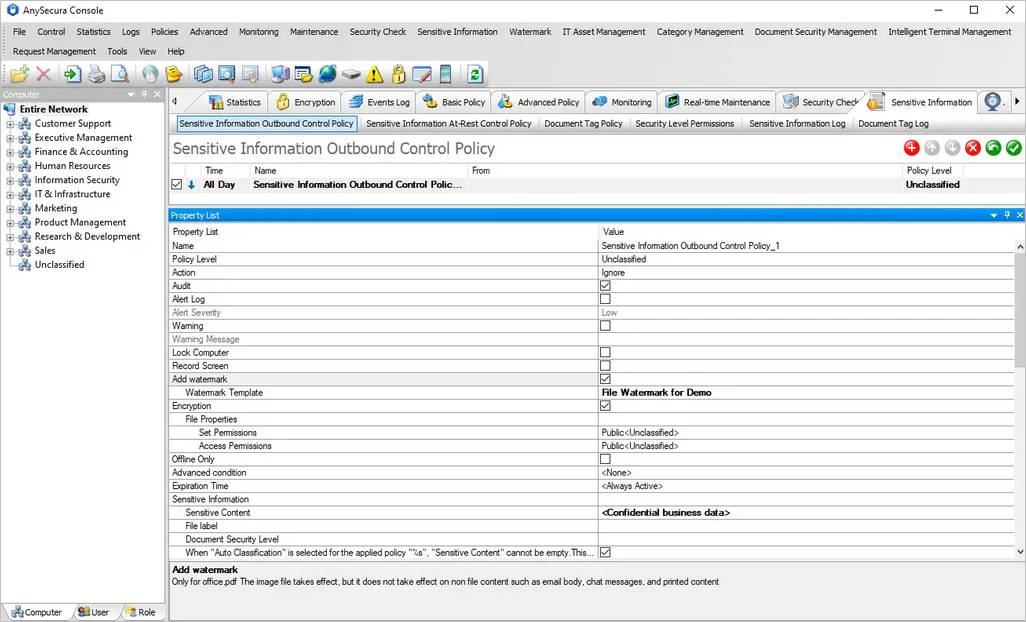
Sensitive content inspection checks business content for keywords and number patterns. This helps you spot information such as customer details or confidential project data. You can set rules to block important files from being sent to unapproved destinations. Alerts and logs let your team check what happened.
Use document tagging to add labels automatically or manually. A clear label helps employees see whether a file is public, internal, confidential, or restricted. It also makes your handling instructions easier to follow.
Manage removable devices and printing
Device control helps you manage which removable devices employees can use on company computers. For example, you can limit unapproved USB storage and define which devices are allowed for work.
Print control helps you manage printing activity. Set printing rules for your teams and review the available records when you need to check a print job. Include these requirements in your policy so employees know which devices and printing methods they should use.
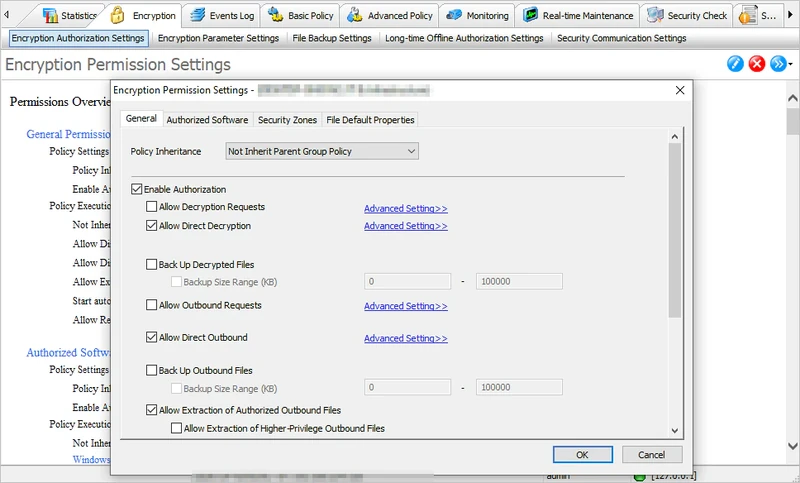
Add protection to important files
Transparent encryption helps protect files such as product drawings, source code, and confidential documents. Authorized employees can work with protected files as part of their normal tasks. Define who needs access and how approved external sharing should work. Test both before applying the rules more widely.
Review alerts and investigate events
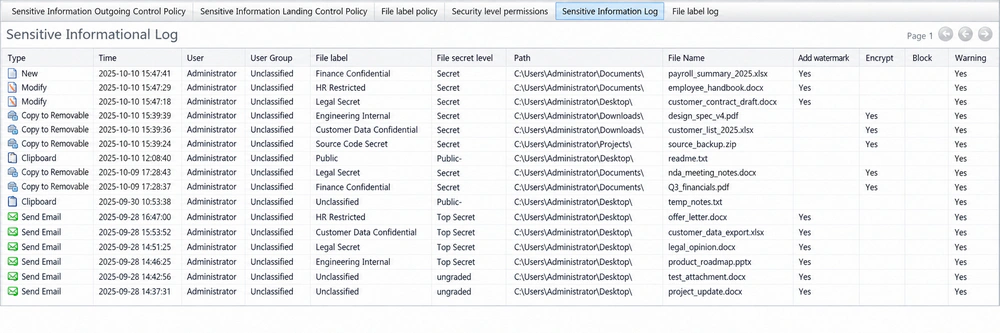
Alerts and event logs help your team see when a rule is triggered and whether an action was allowed or blocked. Use the available records to check who was involved, what they tried to do, and when it happened.
These details can help you investigate a possible leak or spot a rule that is interrupting normal work. Set clear priorities so your team knows which alerts to review first.
FAQ about DLP Policies
What are the four types of DLP?
A common practical grouping is endpoint, network, cloud, and email DLP. Endpoint DLP covers activity on devices. Network DLP checks data moving across the network. Cloud DLP protects data in cloud services. Email DLP checks messages and attachments. These categories overlap, and vendors may group them differently.
What are DLP guidelines?
DLP guidelines explain how users should handle sensitive information: classify it, use approved storage and transfer channels, verify recipients, request exceptions, and report exposure. The policy sets the requirements. Guidelines show employees how to follow them in everyday work.
Where can I view DLP policies?
Employees can find the written policy in their company's policy repository or employee handbook. IT and security teams can view technical rules and event logs in their DLP tool's management console. Access depends on the permissions assigned to each role.
Is a DLP policy required by law?
The obligation depends on your industry, jurisdiction, data, and contracts. Requirements may call for documented security measures, controlled access, or protection of sensitive information without prescribing a standalone document titled “DLP policy.” Map the policy to your applicable obligations rather than treating the title as proof of compliance.
How often should a DLP policy be reviewed?
Plan to review the policy at least once a year. Review it sooner after major changes or incidents. Check technical rules more often during rollout. Adjust them when you find incorrect alerts, missed sensitive data, or new ways of sharing files.
Conclusion
A good DLP policy makes sensitive data easier to protect and everyday sharing easier to manage. Use the template to define your requirements, then adapt the example rules to your team's workflows. Test before blocking and review the policy as your business changes.
For help choosing tools, explore our data loss prevention software guide. Have questions about protecting your data? Contact us to discuss your needs.