
A file disappears from a shared drive, and you need to know who deleted it. Another document reaches a laptop, leaving a different question: what happened after it left the server? File activity monitoring software helps you find out who accessed, changed, or deleted a file and, where supported, where it was copied. But a tool that records activity on a shared drive may not capture what happens next on an employee's laptop. Some tools also restrict copying or transfers, while others focus on recording what happened.
So which tool can answer your question? We put seven of them side by side and looked at what each one records, what it can stop, and where it falls short. Start with the table below for a quick comparison, then read on to see how each tool handles a real investigation.
Our Picks: Which File Activity Monitoring Software Should You Choose?
| Product | Worth considering for | What supports that choice | Main trade-off |
|---|---|---|---|
| AnySecura | File investigation and document usage control | Activity logs, operation backups, and document permissions | Proactive Risk Alerts require Ultimate or Enterprise |
| Endpoint Protector | Device and sensitive-content transfer policies | File tracing alongside device controls and content-based rules | For performance, the vendor recommends File Tracing and File Shadowing on no more than 15% of endpoints |
| Teramind | Investigating programs and websites involved in file activity | File events with process details, plus domains and filenames for web transfers | Same-network-server copies and empty-file copies are tracking gaps |
| ManageEngine DataSecurity Plus | Investigating file server changes by event type | Reports for deletion, overwriting, moves, security changes, and failed access | Files Copied covers specific server-login scenarios; endpoint DLP is separate |
| ManageEngine ADAudit Plus | File access and AD-related permission investigations | File events, before-and-after permissions, and group membership records | File server auditing requires an add-on |
| FileAudit | Centralized Windows and cloud access auditing | Search access records across servers and supported cloud storage | Cross-server moves appear as separate deletion and write events |
| PA File Sight | Windows copy investigations with client evidence | Related programs, saved paths, and Probable Copy flags | Archive-based copies may go unflagged; Ultra and Endpoint licenses are required for client-assisted historical investigations |
Why We Made These Picks
When you’re trying to find out what happened to a file, four things matter most:
- Coverage: We looked at which actions each tool records and where it can see them: on file servers, employee computers, USB drives, or cloud storage. What matters is whether the tool can see the place your file went. A server log can show that someone accessed a document, but it may tell you nothing about a later USB copy.
- Investigation detail: A useful record connects the person, file, action, time, and location. Extra details fill in the gaps: the program involved, where the file was sent, or a saved copy of the file.
- Response: Timing matters here. An alert tells you something happened. An automated response may stop further activity. Blocking the original transfer requires a control that takes effect before it finishes. We noted which of these each tool can actually do.
- Deployment and licensing: We considered what you actually need to install and license to get the required coverage. Extra agents, paid modules, edition upgrades, and storage all add to the cost, and skipping them can leave gaps in what you see.
7 File Activity Monitoring Tools Compared
1. AnySecura: File Investigation and Document Usage Control
When a file is changed or deleted, you may want to know both who did it and what the file contained. AnySecura combines file activity records, document permissions, and operation backups: logs help trace the action, available backups let you review the saved contents, and permissions restrict actions such as copying or deletion.
Among file activity monitoring tools, AnySecura is worth considering for teams responsible for both file auditing and data protection. If you want to control how employees use documents and stop unauthorized transfers, not just search the records afterward, AnySecura covers both.
File Activity Coverage
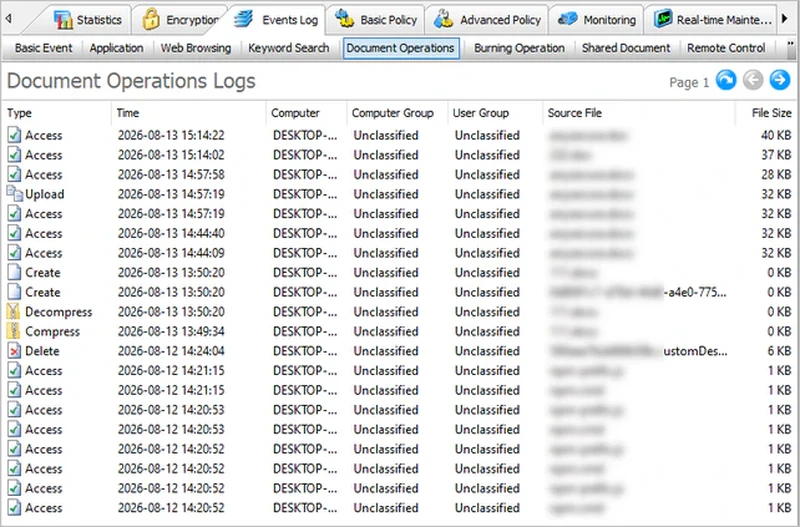
AnySecura records file creation, access, modification, copying, moves, deletion, and renaming across local drives, removable storage, and network locations, including operations on shared files.
These records help answer specific questions: who accessed an important document, who changed a shared file, and whether a file was copied, moved, or deleted. You can check the record instead of relying on employees to remember what happened.
Investigation and Response
An employee who is about to leave copies a customer list from a shared folder to a USB drive, then deletes the original. In AnySecura, the Document Operations Logs show both the copy and the deletion, with the user, computer, and time. If backup is enabled for that operation, you can open the saved file and see what it contained. With document permissions and USB controls in place, the copy could have been blocked before it happened.
AnySecura also supports backups for sensitive file operations, so investigators can review the saved contents, not just the log entry.
For day-to-day work, AnySecura can let employees edit documents while restricting copying or deletion. Team members can continue updating a working document without being allowed to freely copy or delete it. Protecting the document does not have to mean preventing normal editing.
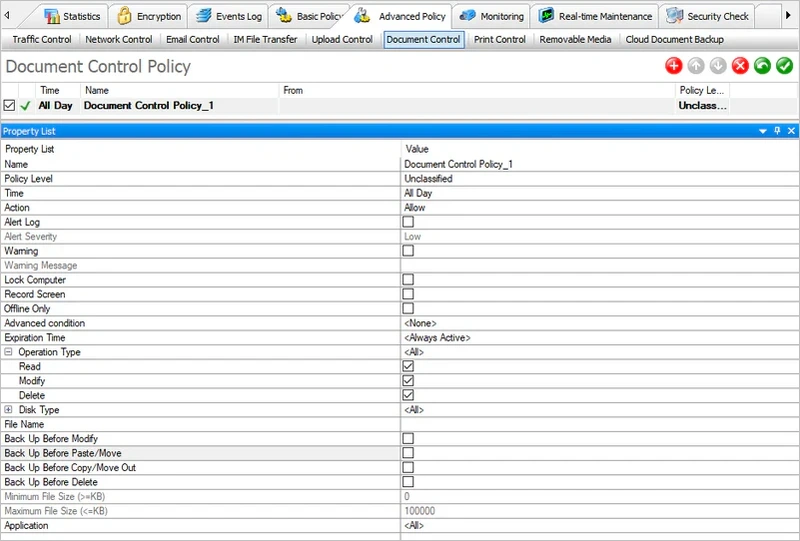
Beyond document operations, AnySecura can restrict USB device use and apply transfer rules based on whether files contain sensitive information, helping reduce the risk of important files being taken without authorization.
Many file auditing tools only tell you what happened to a file afterward. AnySecura can also stop some of those actions in the first place. If file monitoring is part of a wider data protection project, that mix of records, backups, and controls is worth a look.
Who Is AnySecura Best For?
AnySecura suits IT and security teams responsible for both file incident investigations and everyday document protection. It is particularly relevant when teams need to trace who changed, copied, or deleted a file while allowing normal editing and restricting copying, deletion, USB use, or sensitive-content transfers.
Logs and backups help when something goes wrong; permissions, device controls, and content policies help keep it from happening.
- Combines file activity records with operation backups to help trace changes and review retained file contents.
- Allows editing while restricting copying or deletion, balancing everyday work with document protection.
- Combines document permissions, USB device controls, and sensitive-content policies to manage file use and transfers across different scenarios.
- The base plan does not include Proactive Risk Alerts. These require Ultimate or Enterprise.
- Deployment is on-premises. There is no fully cloud-hosted console, so the management server runs on your own hardware.
2. Endpoint Protector: File Tracking with Device and Content-Based Transfer Controls
When a file is copied to removable storage or sent through a supported channel, you may want to investigate the transfer and restrict unauthorized activity. Endpoint Protector combines file tracing, device control, and content policies, with optional File Shadowing to retain file copies for investigation.
Endpoint Protector is worth considering for teams that want to manage file monitoring alongside data loss prevention policies. It records relevant activity and controls transfers based on device permissions and file contents.
File Activity Coverage
Endpoint Protector's File Tracing records supported activity involving removable devices and network shares, including access, writes, transfers, renames, and deletions. With these records, you can see whether a file was accessed or transferred and what changed.
Endpoint Protector supports Windows, macOS, and Linux.
Investigation and Response
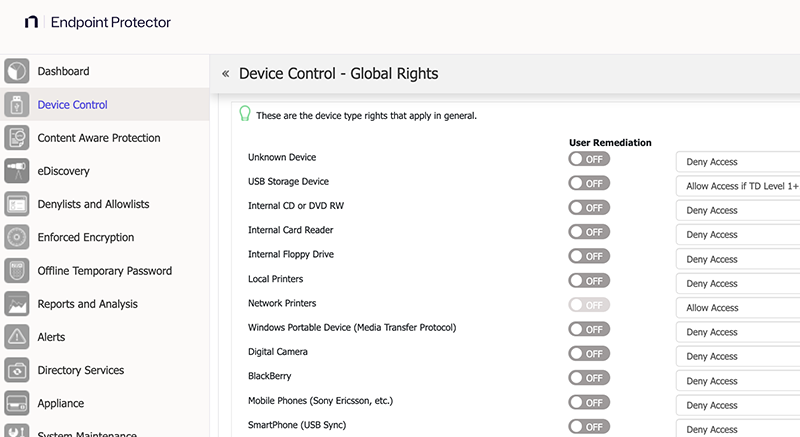
Endpoint Protector controls file transfers at two levels: the device and the content.
Device Control governs whether USB and other supported devices may be used. Teams can restrict unapproved removable storage directly, without waiting for a particular file to be identified as sensitive.
Content Aware Protection applies transfer rules based on file contents. Content policies can generate notifications or restrict transfers through supported channels. Even when a device is approved, separate rules can govern sensitive files transferred through it.
File Tracing provides the activity record for an investigation. File Shadowing can also retain copies in supported scenarios, allowing investigators to review the saved contents rather than only seeing that a transfer occurred.

Who Is It Best For?
Endpoint Protector suits IT and security teams that need to manage both removable-device use and sensitive-file transfers. A team might restrict unapproved USB devices while applying content-based rules to transfers through approved devices or other supported channels.
File Shadowing is also useful when investigations require the file contents. It requires File Tracing and storage for the retained copies.
- Device and content policies work together to control device access and sensitive-file transfers.
- File Tracing records activity; File Shadowing adds retained copies for content review.
- Supports Windows, macOS, and Linux.
- Keeping file copies on many endpoints can affect performance. The vendor recommends enabling File Tracing and File Shadowing on no more than 15% of the deployment's total endpoint capacity.
Compare full lockdown, read-only, and encrypted USB access, plus free Group Policy options for stopping file copies to removable drives. Learn more>>
3. Teramind: Investigating the Programs and Websites Behind File Activity
After a file is copied or uploaded, knowing who did it may not be enough. Teramind combines file activity records with program and website information to help explain how the file was handled.
Teramind is useful when a file event on its own doesn't tell you enough.
File Activity Coverage
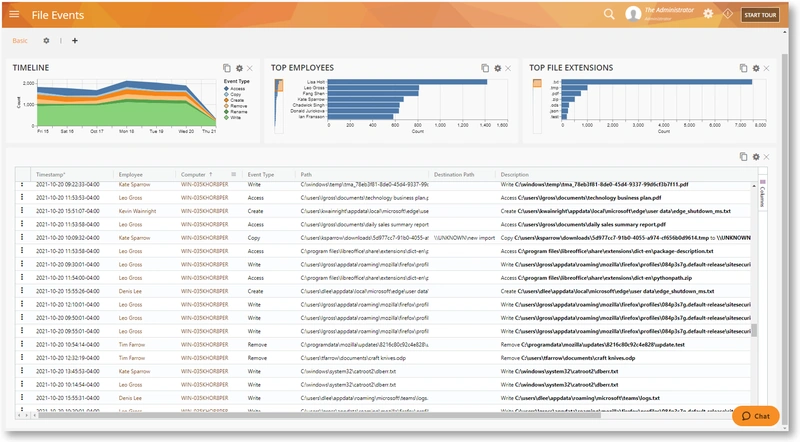
Teramind records supported file access, creation, writes, copies, moves, renames, and deletions across local drives, external storage, and network locations, including shared files accessed from monitored computers.
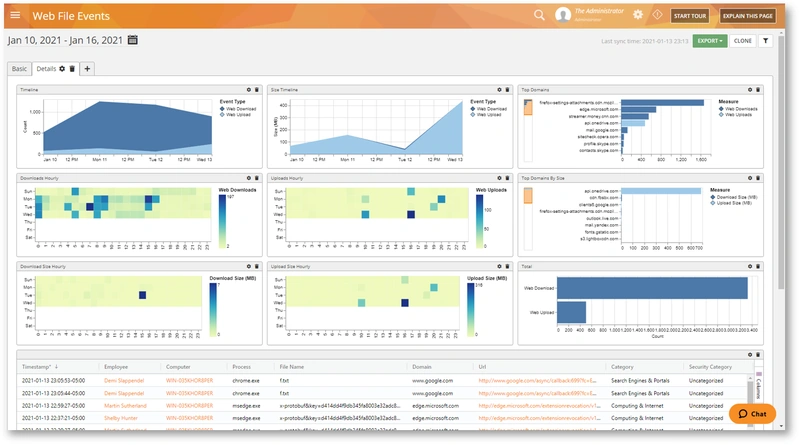
For uploads and downloads, its Web File Events report includes related domains and filenames.
Investigation and Response
Teramind's File Events report shows the time, employee, and program involved. You can see which application handled the file, not just the file operation itself.
For uploads and downloads, Web File Events lists the domain and filename, so you can see which website a file was sent to or came from.
Teramind also offers rules that raise alerts and restrict supported actions such as file access or USB copying. The same tool that records the activity can also stop some of it.
Who Is It Best For?
Teramind suits IT and security teams investigating employee file activity, particularly where applications, website uploads, or downloads are involved.
For example, you may know that a file was transferred but not which program or website was used. Our employee monitoring software comparison covers the broader activity-monitoring options.
- Connects file events with employees, timestamps, and programs.
- Web file reports supply domain and filename details for upload and download investigations.
- Combines monitoring with alerts and supported file-operation controls.
- Copies within the same network server and copies of empty files are tracking gaps. If a file was copied this way, there may be no copy record.
4. ManageEngine DataSecurity Plus: Investigating File Server Events by Operation Type
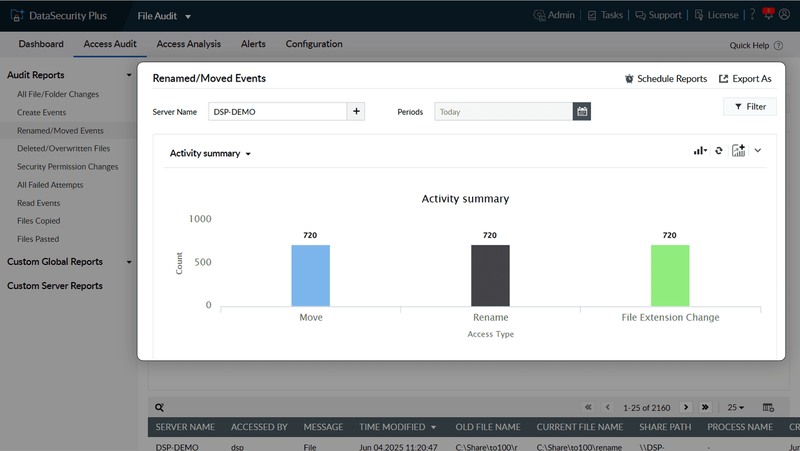
When a shared document goes missing, the first question is whether it was deleted, overwritten, renamed, or moved. DataSecurity Plus has a separate report for each, so you know where to look first.
That makes it practical for IT and security teams that regularly deal with shared-file incidents, permission changes, and failed access.
File Activity Coverage
DataSecurity Plus audits file reads, creation, modification, deletion, moves, renames, and changes to permissions, ownership, and audit settings.
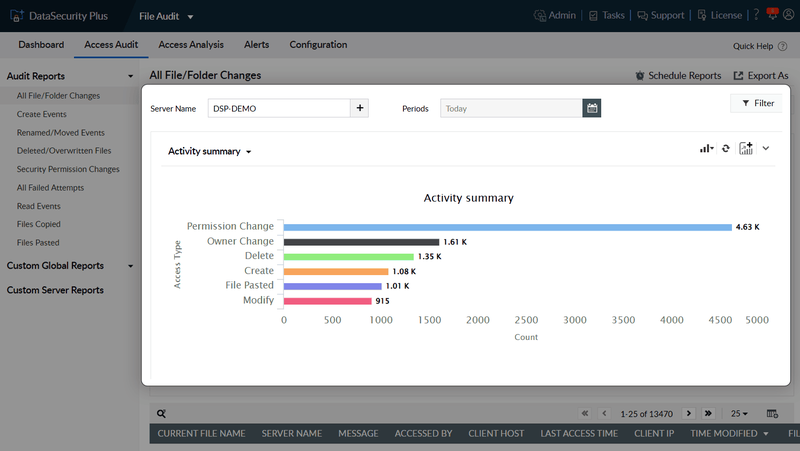
It provides separate reports for deleted or overwritten files, renamed or moved files, and failed access. Failed-access reports include unsuccessful read, write, and delete attempts.
Investigation and Response
If a file goes missing, the deletion and overwrite report or the rename and move report usually shows what happened. If an employee can't open a file, the failed-access and permission-change reports show why.
Each event is tied to an account, a file, and, where available, the source computer. So you learn who deleted a file and from which machine, not just that it was deleted.
DataSecurity Plus can alert on specified conditions or activity-count thresholds and run configured response scripts. You hear about unusual activity before someone reports a missing file.
Who Is It Best For?
DataSecurity Plus suits IT and security teams that routinely investigate several kinds of file server incidents, from shared-file deletions to permission changes and repeated access failures.
Data discovery and endpoint DLP are sold as separate modules. You can add them later; file auditing works without them.
- Organizes reports around deletions, overwrites, moves, security changes, and failed access.
- Connects file activity with accounts and available source details.
- Supports alerts and response scripts, with separate modules for broader data protection.
- The Files Copied report covers specific server-login scenarios: users copying from shares while logged in locally or remotely to the file server. It is not a complete record of every employee copying files through a share.
- Endpoint transfer blocking requires the separate DLP module. File-audit response scripts act after an event.
5. ManageEngine ADAudit Plus: Investigating File Access and Permission Changes
When an employee starts opening sensitive files, the question is often both what they did and how they got access. ADAudit Plus provides file server auditing, file-permission change records, and AD group membership auditing to answer both.
If your team looks after both AD accounts and file servers, you get file activity, permission changes, and group membership changes in one place.
File Activity Coverage
ADAudit Plus monitors file access, modifications, deletions, renames, moves, copies, and permission changes on Windows file servers and supported NAS platforms.
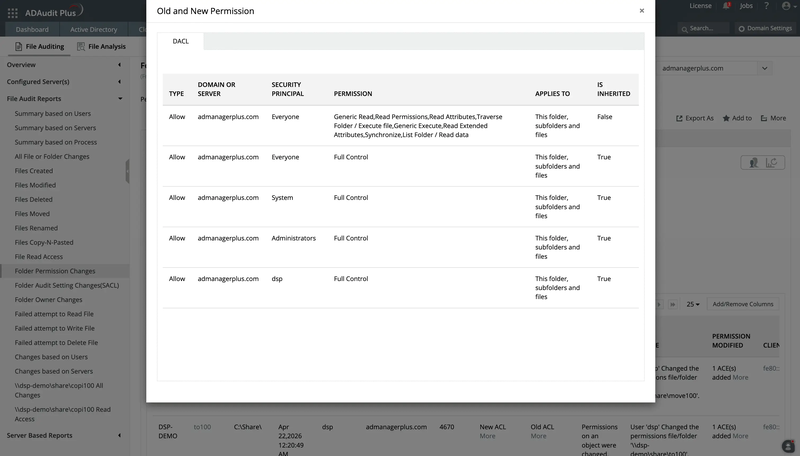
Records identify accounts, source computers, timestamps, and successful or failed access. File-permission auditing also shows before-and-after permission values, so teams can see what changed.
Investigation and Response
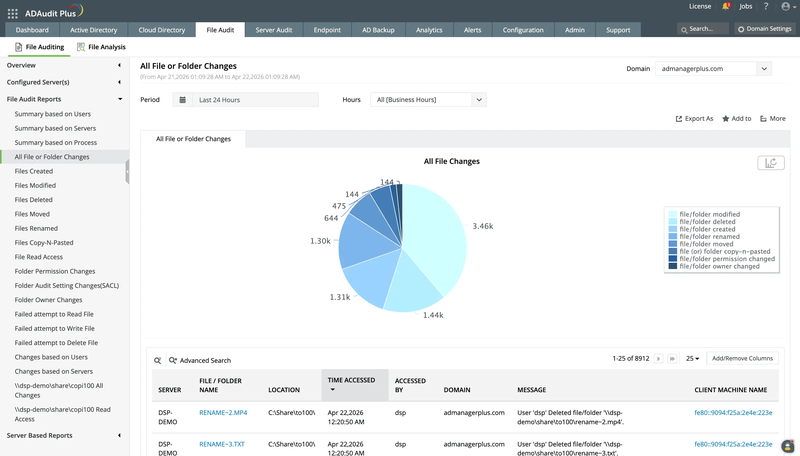
Investigators can narrow unusual shared-file activity by user, path, operation, and time, then examine the relevant account and source computer.
For changes to access rights, ADAudit Plus shows old and new folder permissions. Where access is granted through an AD group, group membership reports show additions and removals, including who made the change and when.
This matters because an employee's access can change in two ways: through folder permissions or through group membership. ADAudit Plus records both.
Alerts can flag access to important locations, deletions, permission changes, and unusual activity volumes. Saved report profiles, scheduled delivery, and exports support recurring checks.
Who Is It Best For?
ADAudit Plus suits IT, security, and audit teams managing both AD and file servers, especially when file investigations also involve accounts, groups, and permissions.
If you review access rights and send audit reports regularly, saved queries and scheduled reports save you from rebuilding the same report each time.
- Provides file activity, file-permission changes, and AD group membership records for related investigations.
- Shows before-and-after permission values to make changes explicit.
- Saved queries, scheduled delivery, and exports support recurring audits.
- File server auditing requires additional licensing with Standard and Professional.
- Script responses act after an event and do not replace controls that block the original operation before it completes.
6. FileAudit: Centralized Windows and Cloud File Activity Auditing
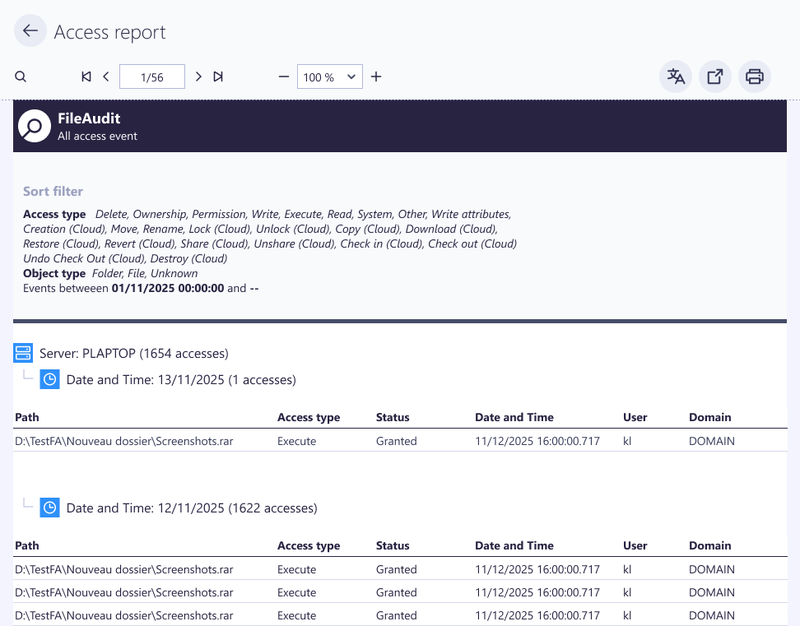
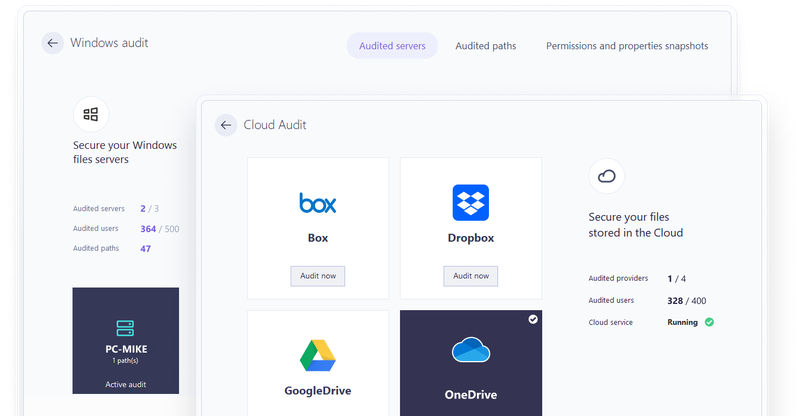
When important files live on both Windows file servers and cloud services, the records you need are spread across several places. FileAudit pulls them into one searchable view that shows who accessed a file, what they did, and whether access was allowed.
FileAudit is worth considering when the main requirement is ongoing access auditing across servers and supported cloud storage.
File Activity Coverage
FileAudit covers file access and changes involving files, permissions, and ownership. Alongside Windows file servers, supported cloud services include OneDrive for Business, SharePoint Online, Google Drive, Dropbox Business, and Box.
Server and cloud activity can be searched together in one place.
Investigation and Response
FileAudit shows the account, file or folder path, access type, time, and whether access was granted or denied. You can filter by user, group, path, time, and source to find the events you need.
FileAudit can alert on individual events, such as deletion or denied access, or on activity-count thresholds that draw attention to bulk operations.
Alerts can run scripts against an account or session to restrict further activity. Because the script runs after the event, the first operation has already happened.
Who Is It Best For?
FileAudit suits IT, security, and audit teams that need to review Windows file server and supported cloud-storage activity together. It fits environments where important documents are spread across servers and cloud services and the team wants centralized searches and alerts.
Windows monitoring does not require an agent, but monitored folders still need audit-policy configuration. Cloud auditing requires the corresponding Cloud add-on.
- Centralizes activity from Windows file servers and supported cloud storage.
- Shows granted or denied access and supports filters such as account, path, and time.
- Individual-event and activity-count alerts help identify operations worth investigating.
- Cross-server moves do not appear as one complete move record. Instead, the log shows a deletion on the source server and a write on the destination server.
- Script responses do not replace prevention of the original operation.
7. PA File Sight: Investigating Which Program Read a File and Where It Saved It
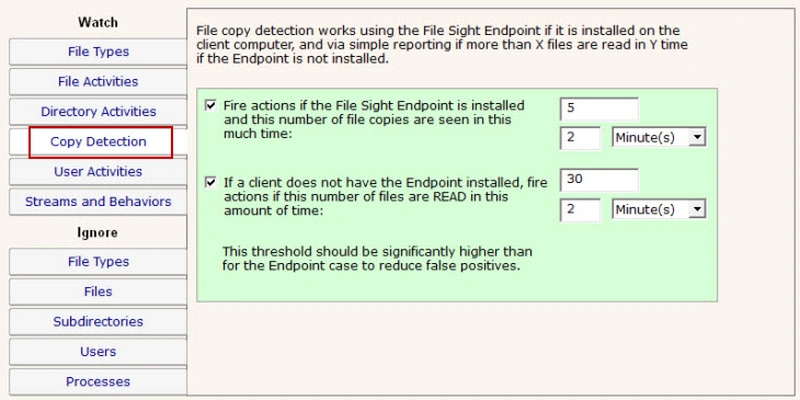
A server read record does not tell you where a file went next. PA File Sight combines server monitoring with optional client Endpoints to add the program that read a file and the locations where that program saved files, helping investigate possible copies.
That gives you a likely destination, not just a count of reads.
File Activity Coverage
PA File Sight monitors file reads, creation, changes, deletion, moves, renames, and permission changes on Windows systems, recording the account and file involved.
Optional Endpoints add related client-process and saved-path information to the server-side activity record.
Investigation and Response
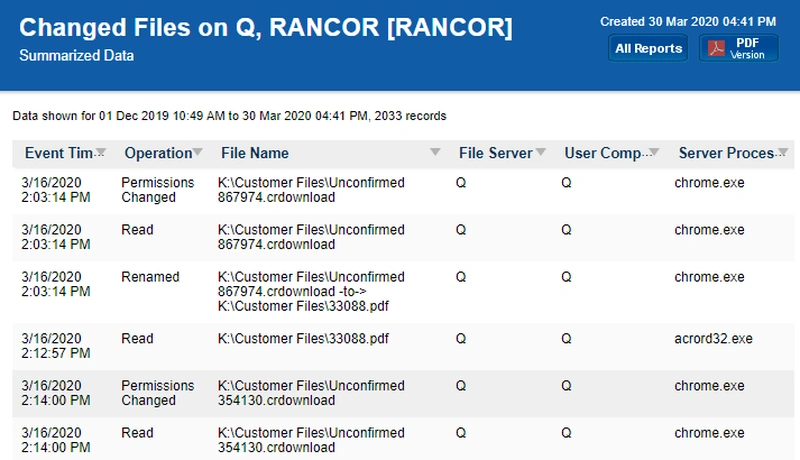
Suppose an employee reads a shared document in Windows Explorer and then saves a file with the same name to a local drive. PA File Sight's Endpoint can add the process and saved path, marking the activity as Probable Copy when the conditions match.
So instead of a bare server read, you get a likely destination. The flag is based on what the process read and wrote; it does not compare the contents of the two files.
PA File Sight also supports alerts and automatic access restrictions for specified accounts. Ultra provides database-backed historical reports for reviewing recorded activity later.
Who Is It Best For?
PA File Sight suits IT and security teams focused on Windows copy investigations, particularly when they need to identify the program reading a shared file and where it subsequently saves files.
This only works on computers that have an Endpoint installed. Historical reporting and Endpoint support require Ultra, with the necessary client licenses.
- Client information adds processes and saved paths to copy investigations.
- Probable Copy flags help identify activity for further investigation.
- Ultra historical reports support later review, alongside alerts and account access restrictions.
- Copying through compression or archiving may go unflagged. It cannot directly confirm which original files were included in an archive.
- Historical reporting and client-assisted copy detection require Ultra and additional Endpoint licenses. The base edition does not include that combination.
How to Choose File Activity Monitoring Software
The right tool depends on the answer you need: who accessed a file, where it was copied, or whether a transfer can be stopped. An access log, a saved copy of the file, and a blocking rule answer different questions, even though many tools offer more than one.
Do You Need to Track Where a File Was Copied?
A read record alone does not identify a copy destination. To know whether a shared document ended up on an employee's local drive, you need details from that computer, not just the server. PA File Sight's optional Endpoints can add the program involved and saved-file paths. Its Probable Copy flag points you in the right direction but does not prove the two files are identical.
For uploads and downloads, Teramind's Web File Events adds domains and filenames. Investigations that also involve broader account or employee behavior are covered in our insider threat detection tools comparison.
Do You Need Alerts or File Transfer Blocking?
An alert can report an operation without preventing it. FileAudit can run scripts after an event to restrict subsequent activity. That limits the damage, but the first operation still goes through.
For prevention, AnySecura offers document permissions such as allowing edits while restricting copying or deletion. Endpoint Protector applies device and sensitive-content transfer policies. DataSecurity Plus provides endpoint transfer controls through its separate DLP module. So the useful question is not whether a tool has alerts, but what it can actually stop.
See how DLP tools stop sensitive files from leaving through USB drives, email, cloud services, and web uploads. Learn more>>
Do You Need the File Contents as Well as the Activity Log?
An activity record does not necessarily include the file itself. AnySecura's operation backups and Endpoint Protector's File Shadowing can retain contents for review when a corresponding copy is available. That helps when you need to see what was in the file, not just that it changed or left.
Event history is a different thing. PA File Sight Ultra keeps a searchable history of activity, but it does not store copies of the documents.
When Is Built-in Windows File Auditing Enough?
If all you need is to see who accessed files on a Windows server, built-in auditing may be enough, as long as auditing is turned on and the logs are kept. Event 4663 shows that someone accessed a file, but not where it was copied or what happened on their computer afterward.
Dedicated software earns its cost when you also want centralized searches, recurring reports, retained file contents, or controls over file use. Windows event logs don't give you these on their own.
Do You Need Reports for Compliance Audits?
Regulations and standards such as GDPR, HIPAA, SOX, and PCI DSS expect you to show who accessed sensitive data and when. Audits go more smoothly with searchable logs with long retention, scheduled reports you can export, and records that cannot be edited after the fact.
ADAudit Plus supports saved report profiles, scheduled delivery, and exports for recurring audits. AnySecura includes audit logs and compliance reports. How long records are kept, and who can delete them, varies by product and configuration.

How businesses use monitoring tools and audit records to meet regulations and reduce risk. Learn more>>
How Much Does File Activity Monitoring Software Cost?
Each vendor counts something different: seats, endpoints, file servers, or domain controllers. The table below shows the licensing model and, where the vendor publishes one, the starting price.
| Product | Licensing model | Published starting price |
|---|---|---|
| AnySecura | Per seat, annual | From $216 per seat per year |
| Endpoint Protector | Per endpoint | Quote-based |
| Teramind | Per seat, tiered plans | Varies by plan |
| ManageEngine DataSecurity Plus | Per file server, annual | Varies by server count |
| ManageEngine ADAudit Plus | Per domain controller, plus file server add-ons | Varies by edition and add-ons |
| FileAudit | Subscription by users and audited servers | From $40 per month (Team: 100 users, 1 server, billed every 3 years) |
| PA File Sight | Per monitored server; Endpoints licensed separately | From $199 per server (Lite); Endpoints require Ultra |
Add-ons, endpoint licenses, and storage are often priced separately, so the full setup usually costs more than the starting price.
FAQs About File Activity Monitoring Software
Q1: What Is File Activity Monitoring?
File activity monitoring (FAM) records who opened, changed, copied, moved, renamed, or deleted files, along with when and where it happened. Teams use these records to investigate incidents, spot unusual activity, and produce audit reports.
Q2: Can File Activity Monitoring Show Who Copied a File?
Yes, if the tool can see where the copy happened. A good copy record shows the account, source, destination, time, and result. A read event alone shows that someone opened the file, not where it went. Coverage often differs for network, local, and USB copies.
Q3: Can File Activity Monitoring Software Block Transfers?
Some can, usually through a separate module or agent and only on certain channels, such as USB or web uploads. Restricting an account after an alert stops later activity, but only a control that acts before the transfer completes can stop the first one.
Q4: How Is File Activity Monitoring Software Licensed?
Licensing may be per server, user, endpoint, module, or a combination. Historical reporting, cloud coverage, storage, and support can affect the total. The real cost is the full setup that covers what you need, which is often more than the starting price.
Q5: What Is the Difference Between File Activity Monitoring and File Integrity Monitoring?
File activity monitoring tracks what users do with business files, such as access, copies, and deletions. File integrity monitoring (FIM) checks system and configuration files against a known baseline to detect unauthorized changes. FAM answers who did what to a document; FIM answers whether a critical file was altered.
Q6: Which Windows Event IDs Track File Access?
With object access auditing enabled and audit entries set on the folders, Windows logs Event 4656 when a handle to a file is requested, 4663 when the file is accessed, 4660 when it is deleted, and 4670 when its permissions change. These events record access on that server, not where a file went afterward.
Q7: Is There Free File Activity Monitoring Software?
Windows has built-in file auditing at no extra cost, but setting up audit policies, collecting logs, and searching them is all manual work. Many commercial tools offer free trials, so you can try their coverage and reports before buying.
Q8: Can File Activity Monitoring Track Cloud Storage?
Some tools can. FileAudit audits supported services such as OneDrive for Business, SharePoint Online, Google Drive, Dropbox Business, and Box with its Cloud add-on. Endpoint-based tools such as Teramind can record uploads and downloads made from monitored computers.
Conclusion
The right choice comes down to what you need to know, or stop, when something happens to a file:
- Trace file changes and control how documents are used: AnySecura. Logs, operation backups, and document permissions cover both the investigation and everyday protection.
- USB and sensitive-content transfer rules matter most: Endpoint Protector.
- Find the program or website behind a file event: Teramind.
- Investigate shared folders on file servers: DataSecurity Plus for event-based reports, or ADAudit Plus when access also changes through AD groups.
- Audit files split between Windows servers and cloud storage: FileAudit.
- See where a shared file was copied on Windows: PA File Sight with Endpoints.
Want to know who deleted that file, and stop the next copy before it leaves? Try AnySecura free for 30 days on your own endpoints.