Need to password protect a ZIP file? This guide will walk you through it on Windows and Mac—and help you check that every file you want to protect is encrypted and your recipient can open it. You’ll also learn how to share the password and handle the original files and extracted copies, so you know what still needs protecting after the ZIP is created.
| Your device or requirement | Method | Important setting | What the recipient needs |
|---|---|---|---|
| Windows 11 or Windows 10 | 7-Zip | ZIP format and AES-256 | An archive app that supports AES-encrypted ZIP files |
| Mac | Keka | ZIP format with AES-256 enabled | Keka or another app that supports AES ZIPs |
| Mac, without installing an app | Terminal | zip -er; uses weaker legacy encryption |
A compatible ZIP reader and the password |
How to Password Protect a ZIP File on Windows
The steps below explain how to password protect a ZIP file on Windows 11 or Windows 10 using 7-Zip. Download it from the official 7-Zip website, install it, and keep the original files available while you work. On a company-managed computer, check whether IT needs to install it for you.
Create the Encrypted ZIP with 7-Zip
-
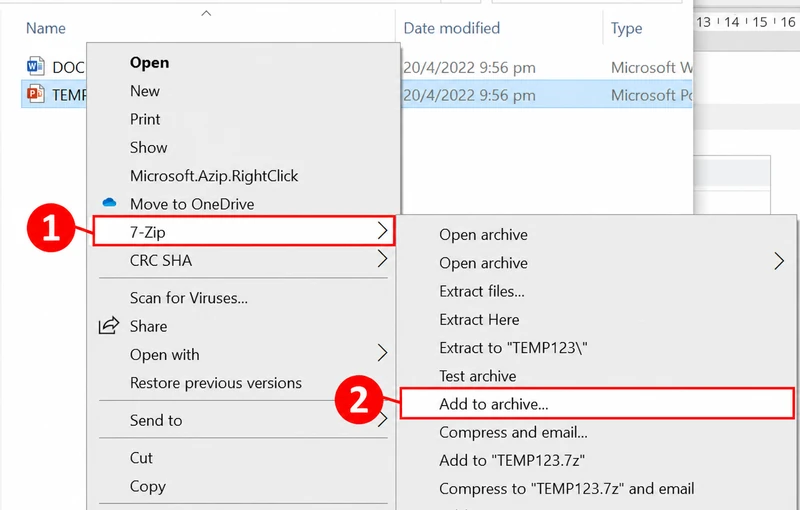
Select your files and open the 7-Zip menu. In File Explorer, select everything you want to include, right-click, and point to 7-Zip. On Windows 11, select Show more options first if that menu is hidden.
-
Choose Add to archive… Open the archive settings from the 7-Zip submenu.
-
Choose ZIP. In Archive format, select zip. Give the output a new name, such as
project-files-protected.zip, and check its destination. Leave the compression settings alone unless you have a specific reason to change them. -
Enter the password. In the Encryption section, fill in Enter password and Reenter password. Save the password in your password manager before continuing.
-
Choose AES-256. Set Encryption method to AES-256. Selecting a password without checking this setting can leave you using a different encryption method.
-
Create the archive. Click OK and wait for compression to finish. If an error appears, resolve it before treating the ZIP as complete.
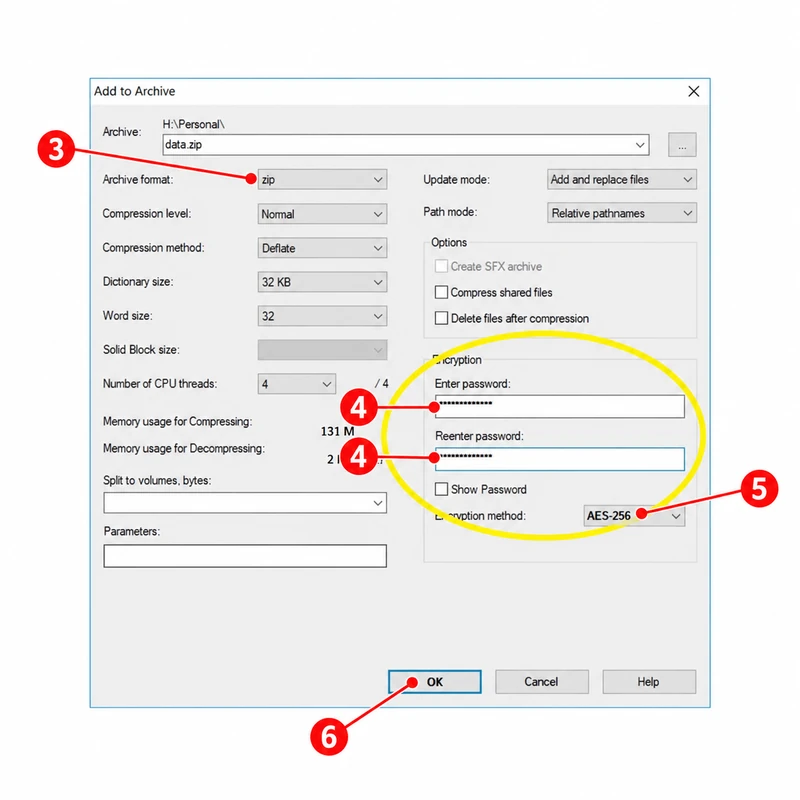
Screenshots illustrate the controls; their interface appearance and example filenames may differ from yours.
Why not use Windows' built-in compression? It creates ZIP files but cannot add a password.
How to Password Protect a ZIP File on Mac
To password protect a ZIP file on Mac, use an archive app with a password-protection option. We recommend Keka, a file compression app for Mac, because its website version is free and you can set a password through a graphical interface without using Terminal commands.
If you use another app, check that it can create password-protected ZIP files and that your recipient can open them. Follow the Keka steps below, or use the Terminal method if you can’t install an app.
Create an AES-Encrypted ZIP with Keka
Install Keka from its official download page or the Mac App Store. The website download is free; the App Store version is paid. Have your source folder and a destination ready before starting.
-
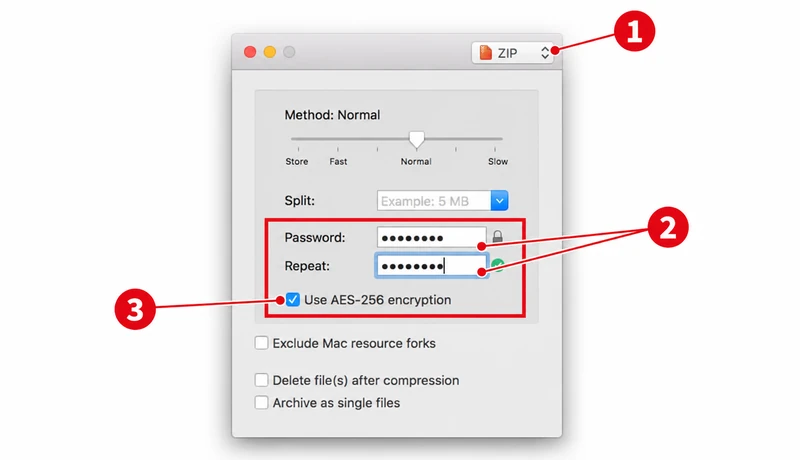
Open Keka and select ZIP. Choose ZIP as the output format. Selecting 7z would create a different type of archive.
-
Set and confirm your password. Enter it in the Password and Repeat fields.
-
Enable AES-256 encryption. Select Use AES-256 encryption in the ZIP options. Do not assume that entering a password automatically enables AES. If the option is not visible, check your Keka version and its compression settings before proceeding.
-
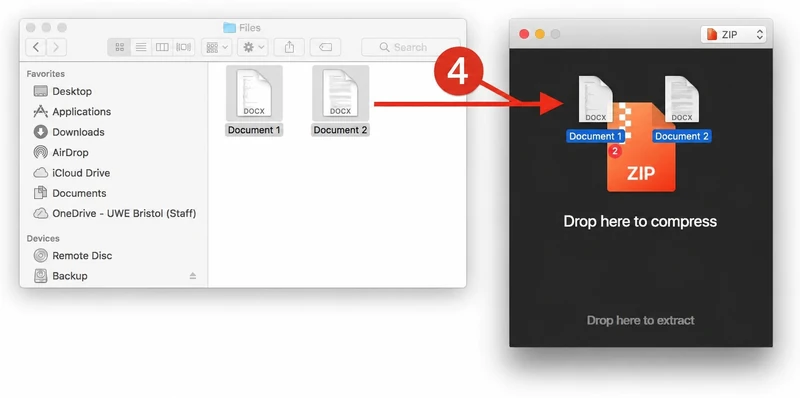
Add your files. Drag the files or folder onto Keka's compression area.
-
Save the archive. Choose a name and destination when prompted, then select Compress. Wait for the operation to finish.
Password Protect a ZIP on Mac Without Installing Software
This method uses weaker legacy ZIP encryption. Choose the Keka AES method above for sensitive documents.
-
Open Terminal. Find it through Spotlight or Applications → Utilities.
-
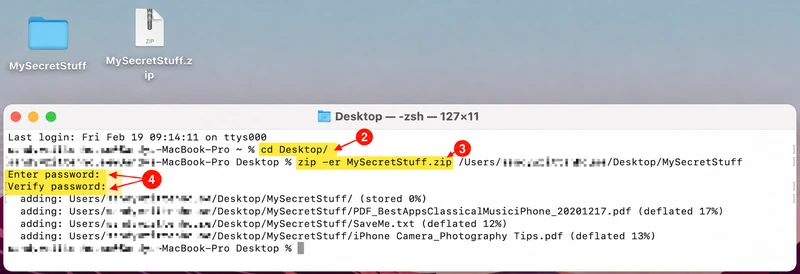
Go to the parent folder. For a folder named
Project Fileson your Desktop, enter:cd "$HOME/Desktop" -
Create a new encrypted ZIP. Replace
Project Filesbelow with your folder name, keeping the quotation marks. Choose an output filename that does not already exist on your Desktop. The ZIP will be saved beside the source folder, rather than inside it. Run:zip -er "project-files-protected.zip" "Project Files"-eenables password encryption;-rincludes the folder and its subfolders. -
Enter and confirm the password. Terminal does not display characters as you type it. That is normal. Press Return after each entry.
-
Find the output. Look for
project-files-protected.zipon the Desktop, then verify that its contents can be extracted with the correct password.
The screenshot uses MySecretStuff as its example. Use your own folder name in the command above.
How to Add a Password to an Existing ZIP File
Already have a ZIP without a password? The steps below show you how to extract its files and create a new, password-protected ZIP using 7-Zip or Keka.
- Keep the original ZIP. Choose a separate destination for the new archive so you don't overwrite your only copy.
- Extract its contents. Use a local folder you control. Check that all expected files and subfolders are present.
- Create a new encrypted ZIP. Select the extracted contents and follow the Windows or Mac AES method above. Use a distinct output name.
- Verify the replacement. Check the password, test every file's readability through the archive tool, and confirm the folder structure is intact.
How to Test and Open a Password-Protected ZIP File
Before sharing your ZIP, check that the password is required, all the files you intended to include are present and readable, and each one is encrypted. Follow the checks below to confirm these points.
Check the Password and File Contents
-
Close the archive app and reopen the ZIP. This helps avoid confusing a remembered password with an unprotected archive.
-
Try reading a file with a wrong password. The tool should reject it. If you cancel a password prompt, it should not produce a readable copy of that protected file.
-
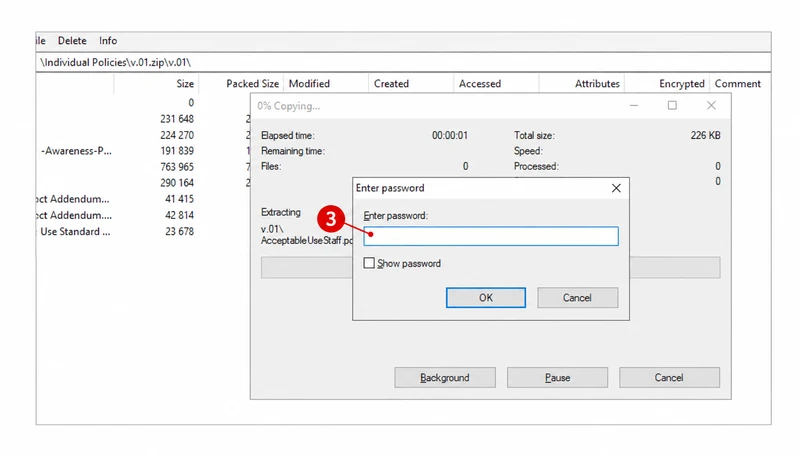
Enter the correct password and extract a file. When the password prompt appears, enter your password and click OK. Open the extracted document to confirm it is readable.
-
Check that nothing is missing or damaged. Extract the full archive into a separate folder. Compare its files and subfolders with your originals and check that the extracted files open correctly. In 7-Zip, you can also use Test to check the archive for errors.
-
Confirm that every intended file is encrypted. An error-free archive can still contain unencrypted files. If your app shows an encryption status for each file, check that all the files you want to protect are marked as encrypted.
If that information is unavailable, repeat the wrong-password check for each file. Close and reopen the app between checks if it remembers your password. No protected file should open with the wrong password.
If you find an unencrypted file, create a new ZIP from the source files with encryption enabled, then repeat these checks.
Fix Common Opening Problems
| What happens | What to check | Next step |
|---|---|---|
| You can see filenames without a password | Ordinary AES ZIPs leave directory information readable | Try extracting or reading a file's contents in an AES-compatible tool |
| The app no longer asks for a password | It may remember the password, or you may be opening an extracted copy | Close the app, clear any saved password if necessary, and reopen the archive itself |
| The recipient cannot extract the ZIP | Their app may not support its encryption method | Try 7-Zip on Windows or Keka on Mac; then check the password and file integrity |
Note: Keep your own verified copy until the recipient confirms they can open theirs. A partial download or an extra space copied with the password can also cause trouble.
How to Keep a Password-Protected ZIP Secure
Creating the ZIP is only part of protecting your files. To keep your files private, use strong encryption and a password that is hard to guess. You also need to protect the original files and extracted copies, because ZIP encryption does not cover them. The following tips explain how to handle all three.
| Setting | What it means for your files |
|---|---|
| ZipCrypto / legacy ZIP encryption | Provides older, weaker protection; avoid it for sensitive information |
| AES-256 ZIP encryption | A stronger choice when paired with a long, unique password and a compatible reader |
| Ordinary compression without encryption | Bundles files but adds no password protection |
Use a password manager to generate and store a unique password. Avoid project names, birthdays, and reused account passwords. Anyone who obtains the archive can attempt password guesses without an online account lockout protecting you.
Share the password separately. For example, email the ZIP and send its password through an agreed messaging service. Confirm the recipient’s contact details before sending either item.
Protect the files outside the ZIP too. Creating an encrypted ZIP does not encrypt your original documents or any extracted copies.
- Files you need to keep: Store originals and backups in an access-controlled or encrypted location. Check who can access any copies in synced folders.
- Temporary files you no longer need: After verifying the encrypted ZIP, remove temporary extracted copies you are allowed to delete. For work files, follow your organization’s retention requirements.
If filenames themselves are confidential, a 7z archive with filename encryption may fit better. That changes the file format, and the recipient needs a compatible tool. For broader device or folder protection, see other ways to encrypt files on Windows.
When Your Business Needs More Than a ZIP Password
A password-protected ZIP works for a one-time handoff when the recipient should receive readable copies. It cannot set an expiration date for extracted documents or stop someone who knows the password from sharing them.
Suppose your engineering team sends design files to suppliers every week. You want each release approved, access limited to the review period, and printing disabled. AnySecura's document encryption and controlled sharing provides a managed outbound workflow for these requirements.
Match the Controls to Your Sharing Requirements
| What you need | How AnySecura helps |
|---|---|
| Review files before sharing | Require approval before employees release files |
| Apply consistent sharing rules | Set sharing policies and reuse outbound templates |
| Limit access duration | Set when access starts and expires |
| Restrict document use | Set permissions for printing, copying, screenshots, and editing |
| Require a password | Require a password to open the document |
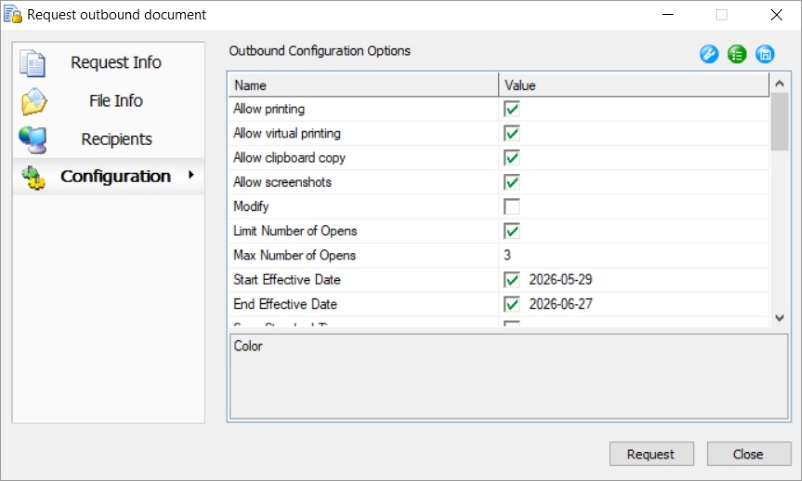
If your recipient simply needs to receive and use the files freely, a password-protected ZIP may be enough. Need the controls listed above? Choose AnySecura to approve files before sharing and control how they’re used afterward.
FAQs about How to Password Protect a ZIP File
Can I Password Protect a ZIP File Without Installing Software?
For Windows users asking how to password protect a ZIP file without installing an app, native compression offers no password-creation option. On Mac, the built-in zip command works without another app, but its legacy encryption is weaker than AES. Ordinary compression alone does not provide either kind of encryption.
Can I Password Protect a ZIP File Online?
Yes, some browser tools offer this. Check whether the tool processes files locally or uploads them, which encryption it uses, and your organization's policy. A browser interface does not establish those facts. For confidential files, use an approved local application or an approved sharing service.
Does a ZIP Password Hide File Names?
Not in the ordinary AES ZIP workflows described here. Someone can generally see filenames while the file contents remain encrypted. To protect the file list too, consider a format with filename encryption, such as 7z, and enable that option.
Can I Recover a Forgotten ZIP Password?
There is no universal password-reset function. Check your password manager, the original sender, or an authorized backup first. Recovery depends on the password and encryption method; a strong random password may be impractical to recover. Do not assume a support team can unlock it.
Can I Change the Password After Sharing a ZIP?
You can create another encrypted copy with a different password, but that does not update or revoke the ZIP someone already received. Their old copy still uses its original password. If ongoing access control matters, choose a sharing workflow designed to manage it.
Conclusion
A password-protected ZIP is ready to share only after you have verified that every intended file is encrypted, the password works, and the recipient has a compatible extraction tool. Use AES-256 with a strong, unique password, send the password separately, and remember that original and extracted files need their own protection.
For a one-time transfer, this may be enough. If your business needs release approval, expiration dates, or restrictions on document use, choose a controlled sharing workflow. With AnySecura, your team can approve documents before release, set how long recipients can open them, and restrict printing, copying, and editing. Request a free demo to see how these controls fit your document-sharing workflow.