Information rights management (IRM) is a way to control who can open a protected document or email and what they can do with its contents. It combines encryption with permissions, such as allowing someone to read a file while restricting editing, copying, or printing. Those controls can stay with protected content after it is shared.
In this article, we'll explain what information rights management is, who uses it, how it works, and the benefits it offers. You'll learn its practical limits and what to check before deciding whether it fits your file-sharing needs.
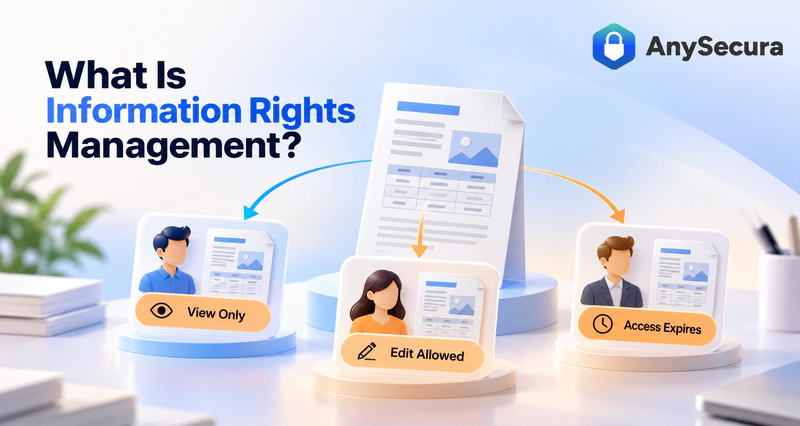
- What it is used for: Sharing sensitive information while keeping control over access and permitted use.
- Who uses it: Teams handling contracts, pricing, designs, or financial reports, with IT or security staff managing the system.
- What they gain: People can receive the access their work requires without automatically receiving every permission to reuse the content.
- What it depends on: Supported files, apps, and authorization. IRM cannot stop every way a reader might reproduce information.
What Is Information Rights Management Used For?
IRM helps address a common problem: you need to share sensitive information, but an ordinary attachment does not by itself control who can read a forwarded copy or how its contents are reused. A supplier, for example, needs your price list to prepare a quotation, but you may not want other people to read it or the supplier to copy and print it.
With IRM, you protect the file and choose its permitted use before sending it. The intended supplier can review it through a supported app or viewer. An unauthorized person who receives the protected attachment should not be able to open it just because they have a copy.
The distinction is between having the file and having permission to use its contents. That makes IRM useful for external collaboration and sensitive internal sharing. It does not prevent someone from forwarding the attachment itself; it helps control access to the protected information.
Who Uses IRM, and What Are the Benefits?
Information rights management is relevant to teams that need to share information with a defined audience or limit how it is used. The following illustrative scenarios show how permissions can support different teams.
| Team and situation | Control they may need | Practical benefit |
|---|---|---|
| Purchasing shares confidential pricing with suppliers | Access for selected recipients, with a review deadline | A supplier can prepare a quotation without the attachment becoming readable by everyone it reaches |
| Legal shares a contract with outside advisers | Editing for the adviser; reading for other reviewers | Each participant can do their part without everyone receiving the same editing, copying, or printing permissions |
| Finance distributes an unreleased report internally | Access limited to the approved group | A forwarded protected copy does not automatically make the report readable outside that group |
| Engineering exchanges design documents with a partner | Supported file formats and task-specific permissions | The partner can review or revise a design within agreed permissions, where the tools support it |
There are three kinds of users in these workflows. Business owners decide who needs the information and what work they should do. IT or security administrators configure the system, policies, and access recovery. Recipients open the protected content in the supported environment.
Across these teams, the goal is the same: let people use the information they need without giving them unrestricted use of it. IRM helps businesses collaborate with suppliers, advisers, and colleagues while keeping access and permissions aligned with each person’s role.
How Information Rights Management Works
To keep permissions effective after sharing, IRM needs both protection for the content and a way to check and enforce the rules. A typical workflow has four steps:
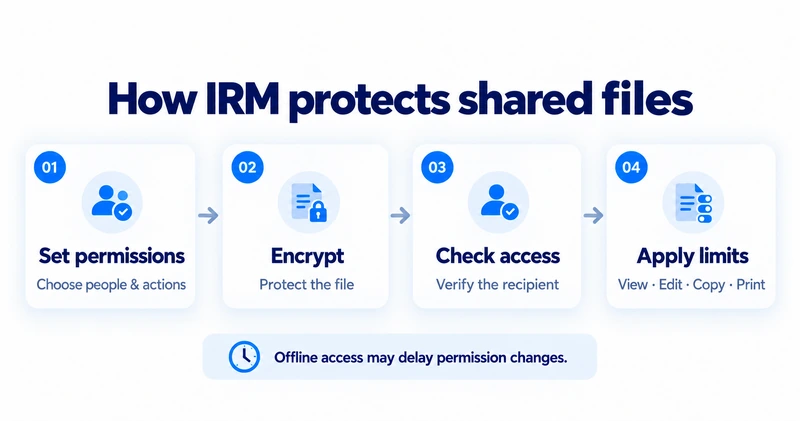
- Choose recipients and permissions. The owner or administrator decides who may use the file and which actions they need. The supplier reviewing a finished price list might receive reading rights without editing or printing rights.
- Encrypt the content. The system makes the contents unreadable without the required authorization and associates the file with its usage policy.
- Check the recipient’s permission to open the file. The recipient opens the file in an application or viewer that supports its IRM protection. That software checks whether the recipient has permission to read the content.
- Apply the permitted actions. Once access is granted, the same application or viewer lets the recipient read the content and restricts actions such as editing, copying, or printing according to the file’s permissions.
Why does an encrypted file still need an application to restrict its use? Encryption alone does not stop an authorized reader from copying or printing a document. IRM also relies on the application or viewer to enforce those restrictions after the document is opened.
Common IRM Features and Permissions
What rules can you set for a protected file? The table below explains the main IRM controls and what each one does.
| Control | What it lets you manage |
|---|---|
| Access permissions | Which authorized people or recipients can open the protected content |
| Editing restrictions | Whether a reader may change the document |
| Copy restrictions | Whether supported app functions can copy content, such as to the clipboard |
| Print restrictions | Whether supported apps allow printing, including virtual printing where supported |
| Expiration | When access ends under the configured validity rules |
| Revocation | Withdrawing access where supported, subject to offline and other implementation limits |
| Access records | Supported access events, such as granted or denied attempts |
A range of products offer these common features, but they combine them in different ways and vary in how precisely you can assign permissions. Before choosing an IRM tool, check which of these controls it supports for the file types you share. See the examples of information rights management in practice below to explore how different products apply these controls.
IRM vs. Sharing Permissions, Encryption, DLP, and DRM
If your organization already uses sharing permissions, encryption, or DLP, do you still need IRM? This section will explain how these tools differ, helping you understand what IRM adds to your existing data protection.
| Approach | What it controls | What to consider after sharing |
|---|---|---|
| Folder or sharing-link permissions | Access through a folder or service | A downloaded copy may need separate protection |
| Ordinary file or disk encryption | Reading data without the required key or authorization | Encryption alone does not establish copying or printing rules after opening |
| IRM | Access to protected content and permitted actions | Rules depend on supported formats, apps, and authorization |
| Data loss prevention (DLP) | Sensitive data use and transfer, according to policy | It may detect or block an action, or trigger protection; it complements IRM |
| DRM / enterprise DRM | Use of licensed or protected digital content | Enterprise DRM overlaps with IRM for business documents |
The key question is what happens after someone receives the file. Sharing permissions control access through a storage service; encryption protects content from people without the required key or password; DLP can detect or block transfers that violate your policies. If you also need to restrict how an authorized recipient uses a shared copy, check whether your existing tools provide those controls. IRM can fill that gap where they do not.
You may also find these capabilities under the name enterprise DRM. For business documents, IRM and enterprise DRM overlap.
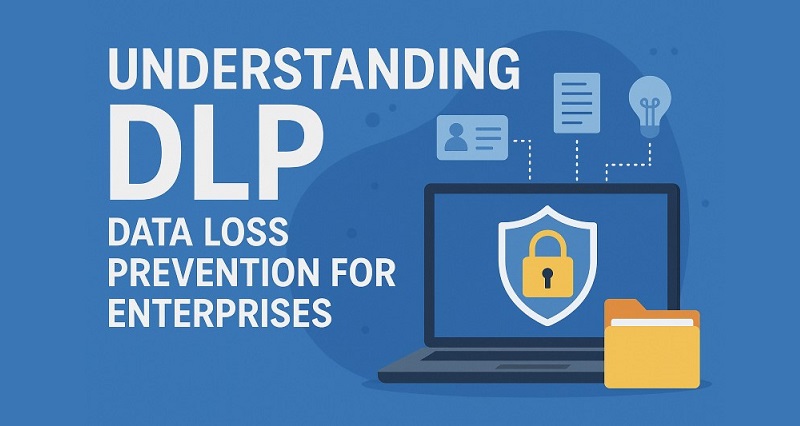
Learn what DLP does, how it detects sensitive data, and where businesses use it. Learn more>>
When Is IRM Useful, and What Can It Not Do?
Consider IRM when someone needs a sensitive file to do their job, but you want to limit who can read it or how it is used after sharing. You might let a supplier read a price list without printing it, or let an adviser edit a contract while other reviewers can only read it.
If you only need to choose who can access a low-sensitivity file in a shared folder, the folder's existing permissions may be enough. IRM is worth considering when the file also needs protection after it is downloaded or sent elsewhere.
Before choosing it, check these three practical limits.
Will the recipient be able to open the file?
Only if they have a supported way to open it and the required permission. For example, a supplier may need a particular Office app or the vendor's viewer, plus an account or viewer authorization.
Check the file format, app, and receiving device before sending something urgent. Your team may need to help recipients set up access and resolve permission problems. Sending an unprotected copy to get around those problems removes the protection you intended to provide.
Will revoking access stop an offline copy immediately?
Not always. Some systems let a supplier open a protected file without an internet connection for a set period. The app relies on permission it saved earlier, rather than asking the server again each time.
If you withdraw access while the supplier is offline, that saved permission may still let them open the file until the allowed offline period ends. Check the product's offline policy before relying on immediate withdrawal of access.
An expiry date sets when access should end. Revocation means withdrawing permission. Neither automatically erases the copies already on recipients' devices.
Can IRM stop someone from photographing the screen?
No. A supported app may disable copying, printing, or screenshots, but a person who can read the screen can still photograph it with a phone or type out the information. Those controls reduce certain ways of reusing content; they do not guarantee that an authorized reader cannot disclose it.
Learn how forensic watermarking helps trace a leaked copy to its source, and what it cannot tell you. Learn more>>
Examples of Information Rights Management in Practice
How do you put these controls into practice? Below, we look at how Microsoft 365 protects documents with usage permissions and how AnySecura manages files shared outside your organization.
Information Rights Management in Microsoft 365
Microsoft 365 provides a practical example of information rights management: a team can share a document while giving each recipient different rights to use it. Microsoft Purview Information Protection applies encryption and usage permissions through sensitivity labels to protect contracts, proposals, and internal reports.
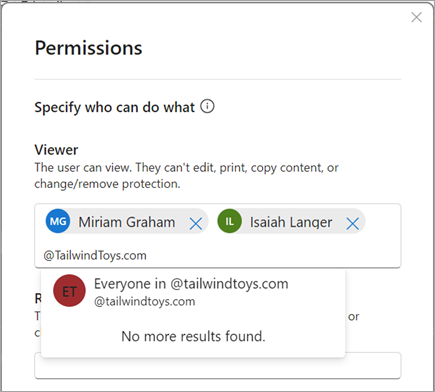
For example, one colleague may need to review a report while another needs to revise it. In Microsoft 365 for Windows, Viewer permission allows reading while restricting editing, printing, and copying. Restricted Editor also allows editing, while printing and copying remain restricted.
Applying Document Controls with AnySecura
When a supplier reviews your pricing or a consultant reads an internal report, they need access to the information for a specific job. You may want them to read it without copying, editing, or printing it—and only for the duration of the work. This is another practical application of IRM: giving external partners access under defined conditions.
AnySecura helps you apply those conditions through protected outbound documents. Before sharing, you can authorize recipients, set permitted actions, and define when access expires.
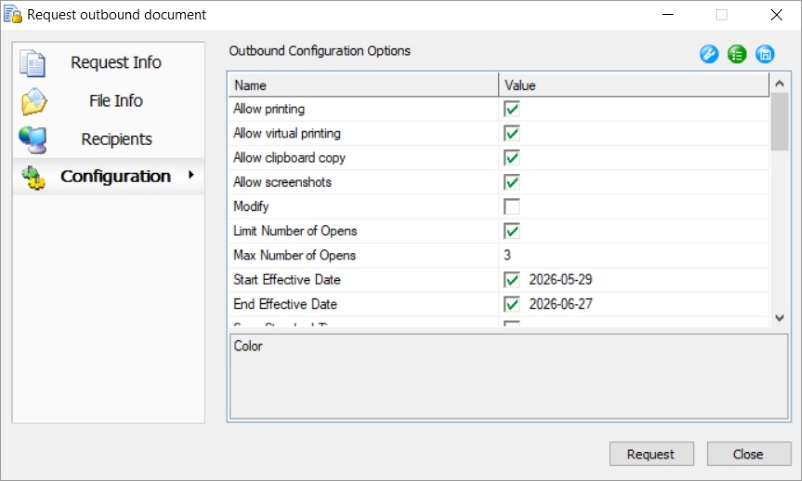
Before you begin, arrange the supplier’s authorization and make sure their computer can open the outbound document with AnySecura’s External Viewer.
For example, to give a supplier two weeks to review a price list, follow these four steps on the Windows client:
- Select the files for outbound sharing. On a client with direct outbound permission, select the price list, right-click, and choose Generate Outbound Files. In the creation window, add any other files or folders needed for the review. A user without direct permission can instead submit an outbound request with a reason, the recipient, and the proposed permissions for approval.
- Choose the supplier as the recipient. Open the Recipients tab and select the appropriate external recipient. The administrator needs to arrange the receiving side's authorization.
- Set the allowed actions and review dates. In Configuration, restrict modification, clipboard copying, printing, and virtual printing for this reading-only task. Set the start and end validity times for the two-week review. Other documented settings include an opening limit and a viewing password.
- Create the outbound document. Select Create, then choose the outbound format and save location. Confirm with OK. The result is the protected document to send to the supplier, rather than an ordinary unprotected attachment. The
The supplier can review the price list during the two-week period, with editing, copying, and printing restricted. If your team regularly shares sensitive documents with external partners, consider AnySecura to put these IRM controls into practice and keep shared files subject to your business’s usage rules.
FAQs About Information Rights Management
Is IRM the same as insider risk management?
The abbreviation is shared, but the subjects differ. IRM here concerns permissions for protected documents and emails. Insider risk management addresses risks associated with trusted users and their activity. Check which meaning a product or article uses.
Can the owner remove IRM protection?
That depends on the owner's permissions and the organization's policy. An authorized owner or administrator may be able to change or remove protection. Someone who can only read the file should request additional rights from its owner or IT team.
Can you protect a file that has already been shared?
Protecting your copy does not automatically protect a plaintext copy someone already received. You can send a protected replacement and agree on how to handle the earlier version, but you do not gain technical control over that earlier copy just by protecting a new one.
Conclusion
Information rights management helps you share sensitive files while limiting who can read them and what they can do with the contents. Its value comes from giving recipients the permissions their work requires, while keeping the file's protection and practical limits in mind.
Want to see how these controls could fit your team's workflow? Request an AnySecura demo to explore protected document sharing on Windows. Tell us which files you share, who needs access, and which actions you want to allow or restrict.