
Time wasting in the workplace is often invisible until output starts to slip. Beyond missed deadlines, it increases stress for managers and team members. Many teams lose hours each day to unapproved websites, unproductive applications, and unfocused digital behavior. You cannot fix what you cannot see.
Research from UC Irvine found that after an interruption, it takes an average of 23 minutes to return to the original task. A few unchecked distractions per person each day can quietly erase hours of focused work across a team — not because people aren't trying, but because attention keeps breaking before deep work can start.
We have you covered. AnySecura gives you clear visibility and simple controls to stop time waste and help your team stay focused on meaningful work.

Part 1: Where Is Your Team Losing Time
Most wasted time doesn't come from one obvious bad habit. It builds up through small, repeated losses that nobody tracks. Before you block a single website, sort the problem into three buckets — the fix depends on which bucket is actually draining your team:
- Digital drift: Social feeds, streaming tabs, shopping sites, and games running alongside work tools.
- Communication overhead: Back-to-back meetings, long group chats, and "quick questions" that pull people off task.
- Process friction: Unclear priorities, duplicate tools, and waiting on approvals or files from others.
Employees often spend long hours on social media, entertainment websites, unrelated apps, and unproductive chat during work hours. These small distractions add up to huge losses in productivity each week. Team members may not realize how much time they lose, and managers lack real data to address the issue. This constant loss of time hurts deadlines, team performance, and overall business results.
The "Busy but Slow" Week
Everyone looks online. Slack stays green. But two client deliverables slip by three days. When you dig in, the pattern isn't laziness — it's 40-minute gaps between task switches, a browser tab for news left open all afternoon, and three separate chat threads running during focus hours. Traditional check-ins miss this because activity and output aren't the same thing.
The Meeting That Replaced the Work
A team lead blocks four hours for status updates and "quick syncs" on Monday. By Wednesday, the actual design or coding work hasn't started. The calendar looks full, so nobody flags it as a problem — but focused work time got squeezed out before anyone opened a work tool.
The Tab Habit Nobody Mentions
An employee finishes a report, checks one notification, opens a shopping site "for a minute," and returns 25 minutes later. They still hit their deadline — barely — but the recovery cost repeats four or five times a day. Without usage data, both the employee and the manager underestimate how much time actually disappears.
Run a five-day time snapshot
Pick one typical week and ask each team member to note, once per day: which task they intended to finish, what pulled them off course, and roughly how long they lost. You don't need perfect numbers — patterns show up fast. If three people mention the same group chat or recurring meeting, that's your first fix target. If the notes keep pointing to browser tabs and game apps, digital controls make sense next.
| Time Drain | Typical Signal | First Fix to Try |
|---|---|---|
| Digital drift | Rising time on social, streaming, or shopping sites during core hours | Block or limit off-task sites; whitelist work tools only during focus blocks |
| Communication overhead | Calendar packed with meetings; long IM threads during deliverable crunch | Cut recurring meetings; set response windows instead of instant-reply expectations |
| Process friction | Tasks stall waiting on approvals, files, or unclear ownership | Clarify handoffs and deadlines before adding monitoring or blocks |
Digital drift is the layer dedicated software addresses most directly — but only after you confirm it's the actual problem. Blocking game sites won't help if the real drain is a daily standup that runs 45 minutes. When you see clearly where the time is spent, you can take the appropriate measures to reduce time wasting and improve productivity.
Part 2: How to Reduce Time Waste with Better Controls
Once the five-day snapshot or usage data points to digital drift as the main drain, controls should target those specific sites and apps — not every non-work tool at once. Start with the top two or three distractions your team flagged, measure for another week, then expand if needed. Heavy-handed blocking on day one often backfires; targeted rules tied to actual patterns tend to stick.
AnySecura helps you reduce time waste in the workplace by combining visibility, prevention and actionable control. Instead of reacting to productivity issues after they happen, managers can identify patterns early, guide behavior, and create a more focused work environment.

Block distracting sites and apps, flag off-topic chat, and keep your team focused on work that matters.
1. Control access to distracting websites and applications
AnySecura lets you set custom rules to manage how company devices are used during work hours. You can allow only work-related websites and applications, or block known distractions that reduce productivity. These controls help prevent unnecessary browsing and keep daily focus aligned with business tasks.
2. Detect unproductive or off-task communication patterns
Use AnySecura's keyword-based alerts to identify potential time-wasting conversations or off-topic discussions. The system supports multiple languages and provides real-time notifications, allowing you to respond early before small distractions turn into larger productivity issues.
3. Understand how work time is actually spent
AnySecura enables you to gain a clear view of application and website usage across teams. Detailed activity logs show which tools are being used and how time is distributed throughout the workday. This makes it easier to identify patterns, spot inefficiencies, and improve overall workflow structure.
4. Manage software usage and reduce unnecessary tools
AnySecura controls which applications can be installed or used on company devices. By restricting unapproved or non-essential software, you can reduce distractions, standardize workflows, and ensure devices remain focused on work-related tasks.
5. Review real activity through screen records and history
AnySecura offers access to screen recordings and activity playback to understand how work is actually performed. This helps identify moments of low focus, clarify task execution, and provide more specific feedback based on real behavior rather than assumptions.
Step-by-step Tutorial:
With AnySecura, you can stay in control anytime and anywhere. All insights and controls are accessible through a web-based dashboard, allowing you to monitor activity, adjust rules, and respond to alerts even when away from the office. See how it works for you.
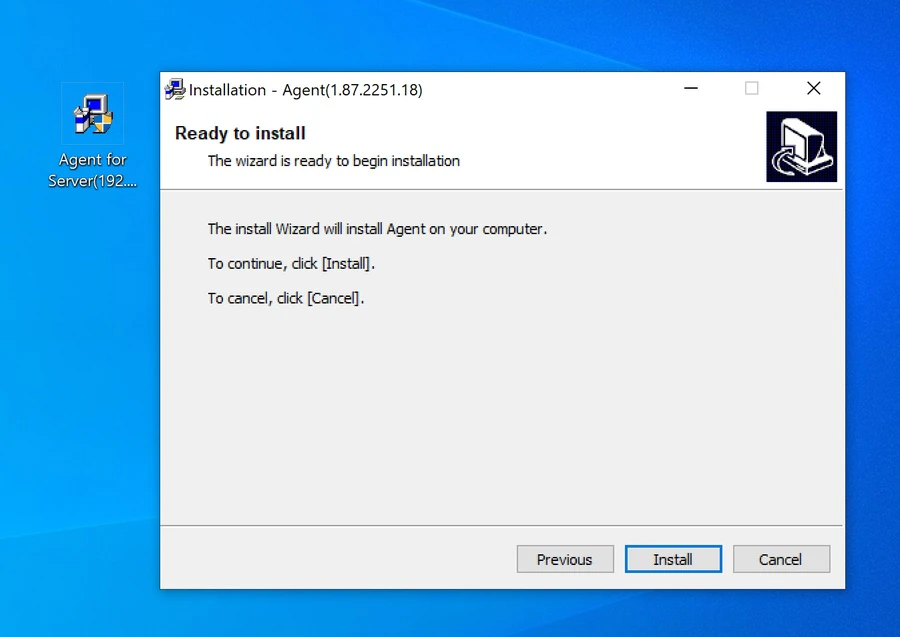
Step 1: Install Console and deploy Agent.
Install AnySecura Console on your Admin computer, then deploy AnySecura Agent on each team member's device. For detailed setup, see the AnySecura Installation Guide.
Step 2: Set block rules for websites or apps.
On AnySecura Console, go to "Category Management" > "Websites" or "Application". Add the website URLs or apps you want to block for your employees. For example, games, social media, shopping, adult content sites, and more.

Step 3: Block websites or apps.
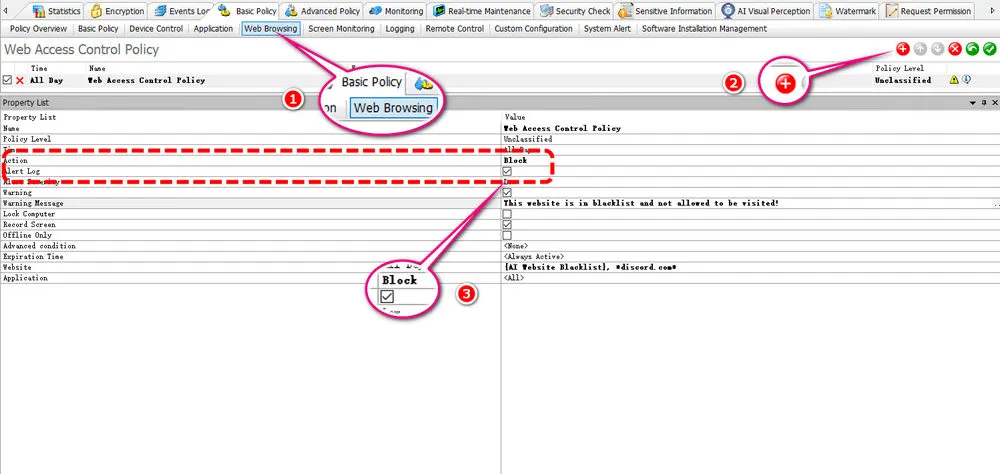
After you build the block list, go to "Basic Policy" > "Web Browsing" or "Application". Click the red "Add" icon in the upper right corner to add the list you just created. Then you can see the Property List, change the action to "Block". Now if your employees want to visit game websites or social apps to waste time, they will be blocked immediately.
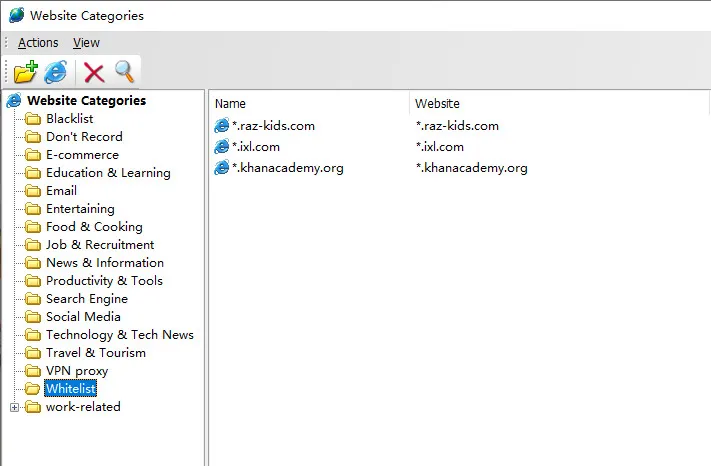
AnySecura also allows you to create whitelists.
Step 4: Block app installation.
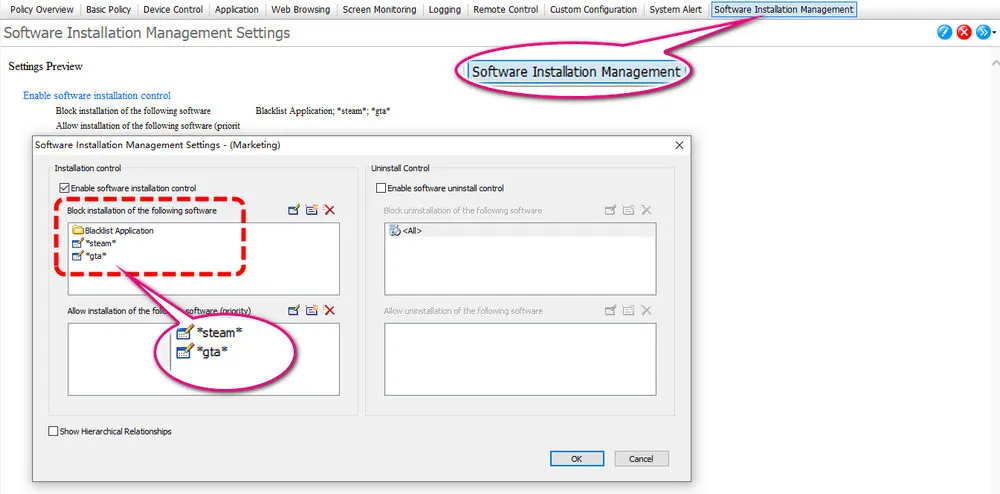
Besides blocking app start in Step 3, you can also block the download of specific apps. Select "Basic Policy" > "Software Installation Management". Block the apps that you don't want your employees to use, such as Steam.
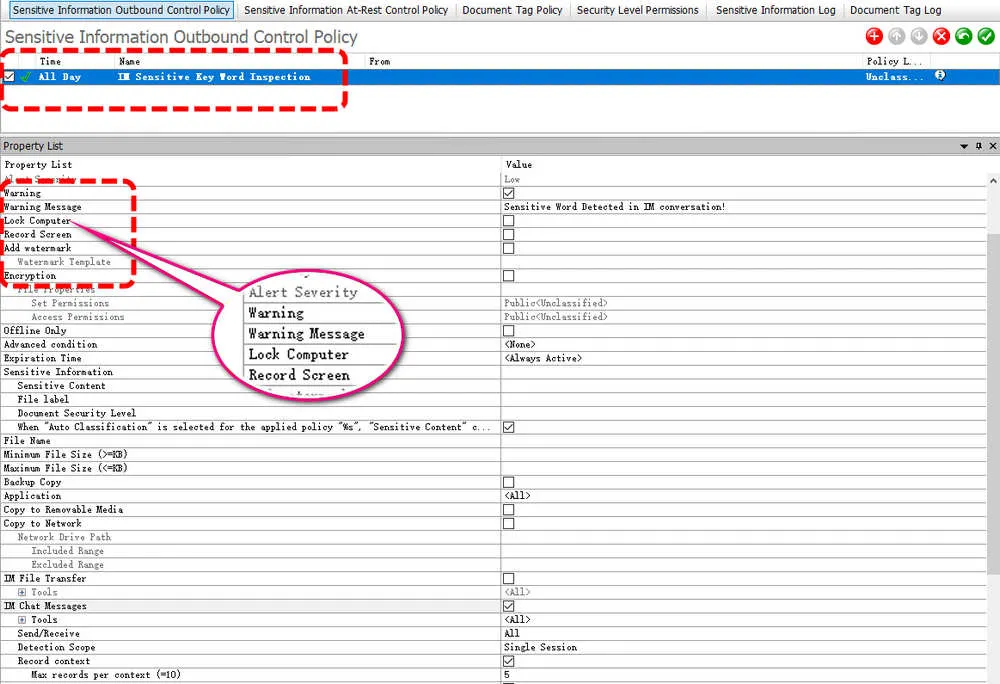
Step 5: Set keyword detection.
To reduce time wasting in the workplace, non-work messages should be controlled. You can click "Sensitive Information" > "Sensitive Information Outbound Control Policy" to set keywords for conversations. AnySecura automatically blocks further chatting once these keywords are detected during their IM apps.
FAQs About Reduce Time Wasting in the Workplace
1. How to stop wasting time at work?
Start by finding where time actually goes — a short team snapshot or usage review beats guessing. Fix communication and process issues first if meetings or handoffs are the bottleneck; if digital drift is the pattern, set clear rules for device use during core hours, block the top two or three off-task sites or apps, and review activity weekly instead of reacting once a project slips. Tools like AnySecura automate the visibility and blocking steps when manual tracking stops scaling.
2. What are three common time wasters in the workplace?
Time wasting in the workplace is usually not caused by one obvious behavior, but by a combination of small, repeated interruptions throughout the day. The three most common buckets are digital drift (social media, streaming, shopping tabs during work hours), communication overhead (unnecessary meetings and unstructured chat that fragments focus), and process friction (unclear priorities, duplicate tools, and delays waiting on others). Any one of these can make employees look busy while output stays flat — which is why diagnosing the bucket matters before choosing a fix.
3. Do I need technical skills to set up time waste controls for my team?
No. Time waste controls are designed to be simple to deploy and manage without technical expertise. AnySecura uses predefined templates and rule-based settings, so that you can quickly apply restrictions, set productivity rules, and adjust policies as needed without special IT support. Also, we provide a step-by-step tutorial, allowing you to get up and running quickly.
4. Should I block all non-work websites on company devices?
Usually not on day one. Blanket blocks often push people to personal phones or create pushback without fixing the root cause. A better approach: run a brief time audit, identify the two or three sites or apps that consume the most off-task minutes, block those during core work hours, and leave everything else until you have another week of data. Whitelist mode — allowing only approved work tools during focus blocks — works well for roles that need tight control without banning every leisure site outright.
Final Words
Don't worry. Time wasting does not have to be a permanent problem in your workplace. You can take clear and immediate action to stop distractions and help your team use every hour effectively.
AnySecura gives you all the features you need to block unproductive sites, monitor activity, detect distractions early, and keep your team focused. Just stop losing time to avoidable distractions. Regain visibility over how work time is spent with AnySecura, and improve your team productivity on what actually matters.
