
Your company laptop leaves the office — do you know what happens to it then?
Once a laptop is used outside the office, you lose direct visibility. Whether you need to monitor work laptops at home, on the road, or at client sites, it's hard to tell whether devices are used as expected, whether work hours align with output, or whether company policies are being followed.
The Verizon 2026 Data Breach Investigations Report puts User devices among the assets most often involved in confirmed breaches — and many of those incidents trace back to endpoints that weren't patched or monitored once they left the office network. Below, we look at where that visibility gap comes from, which signals are worth watching first, and how to monitor company laptops off-site with AnySecura.
Once Company Laptops Leave the Office, Visibility Becomes a Challenge
Company laptops no longer stay inside the office. They travel with employees to homes, client sites, and anywhere work happens. While remote work improves flexibility, it also removes the informal oversight managers once had on-site. Three situations show up repeatedly:
Scenario 1: Work Hours Look Fine, Output Doesn't
An employee's laptop shows activity from 9 AM to 6 PM every day, but tasks still slip. You can't tell whether those hours went to client work, personal browsing, or long idle stretches — because "online" and "productive" aren't the same thing when the device is off-site.
Scenario 2: Work and Personal Use Overlap on the Same Device
Remote employees often use one laptop for everything. Personal streaming, shopping, messaging, or a family member checking email on the device can happen without anyone noticing — and a home network gives IT no visibility either way. Problems surface only after a USB transfer, file deletion, or policy breach shows up in an audit.
Scenario 3: Risky Activity Surfaces Too Late
Without continuous device visibility, problems appear only after a deadline slips, a client file goes missing, or IT finds unauthorized software installed weeks ago. By then, the investigation starts from scratch — with no activity timeline to work from.
What to Monitor First — Before You Open a Dashboard
Not every signal deserves equal attention. When you monitor laptops outside the office, trying to watch everything usually catches nothing useful. A practical review order looks like this:
| Priority | What to Monitor | Why It Matters | When to Act |
|---|---|---|---|
| 1 | App and website usage | Establishes a baseline for how work actually happens off-site | Unusual spikes in non-work apps or sites |
| 2 | Work hours and idle time | Separates presence from productive output | Output drops but logged hours stay high |
| 3 | File, USB, and software changes | Early signs of policy or security risk | Unauthorized transfers, installs, or deletions |
| 4 | Screenshots and screen recordings | Confirms context during an investigation | Only after a log or alert flags a specific issue |
Most teams stop at priority 1 or 2 for routine reviews. Reserve screen capture for confirmed investigations — not daily management. That keeps monitoring focused and easier to explain to employees.
A common mistake: treating VPN or cloud sign-in logs as full laptop monitoring. They confirm someone connected — not which applications ran, which files moved, or whether a personal USB was plugged in. Connection records and usage records answer different questions.
Built-in Tools, MDM, RMM, or Monitoring Software — What Fits Off-Site Laptops?
Search how to monitor laptops outside the office and you'll see four different recommendations. They aren't interchangeable — each was built for a different job. Here's a practical comparison before you commit to a setup.
| Approach | What it does well | Where it falls short for off-site monitoring |
|---|---|---|
| Built-in OS tools Windows Event Viewer, audit policies, macOS Unified Logs |
Free; useful for troubleshooting a single machine or retaining local compliance logs | No central dashboard across home laptops; no app or website time breakdown; collecting logs remotely is slow and doesn't scale past a handful of devices |
| MDM Microsoft Intune, Jamf, Google Endpoint Management |
Device enrollment, patching, app deployment, encryption checks, remote wipe | Confirms the laptop is managed and up to date — not how someone spent Tuesday afternoon, whether a USB copy happened, or which non-work sites opened during core hours |
| RMM NinjaOne, Datto RMM, ConnectWise Automate |
Hardware health, patch status, disk and CPU alerts, remote support sessions | Built to keep machines running, not to review employee usage patterns, file activity, or productivity signals on laptops used at home |
| Dedicated monitoring software e.g. AnySecura |
App and web usage, work-hour logs, file and USB change records, policy rules, investigation timelines — in one console | Requires agent deployment and a written disclosure policy; complements MDM/RMM rather than replacing patch management or remote wipe |
Which Tool Handles Which Goal?
No single product covers everything once laptops leave the office. Most teams split the work like this:
| Goal | Monitor | Tool |
|---|---|---|
| Productivity | Apps and websites | AnySecura |
| Security | USB, file operations, software changes | AnySecura |
| Compliance | Enrollment, encryption, baseline policy | MDM — e.g. Microsoft Intune, Jamf |
| Device health | Patches, disk space, uptime alerts | RMM — e.g. NinjaOne, Datto RMM |
AnySecura handles the productivity and security rows — the signals that disappear once a laptop leaves the office. MDM and RMM keep doing what they're built for; you add monitoring software when usage and data-risk questions start coming up off-site.
Stay Connected to Company Laptops Wherever Work Happens
Those four priorities — usage, productivity, device changes, and investigation — are what dedicated monitoring software is built to collect in one place. AnySecura covers each layer as company laptop monitoring software for remote teams: app and web usage, work-hour logs, device-change alerts, and investigation tools — without replacing the MDM or RMM you may already run for patches and remote support. The steps below walk through each one.
How to Monitor Company Laptop Usage
If your employees work from home or travel with company laptops, this section covers how to monitor laptops used at home or off-site — starting with the apps and websites they open during work hours.
Step 1: Document your policy and deploy the Agent.
Before deploying, put a written monitoring policy in place — what you track, why, and who can access reports. Most jurisdictions require employees to know when company-owned devices are monitored, even outside the office. Once that's documented, install AnySecura Server and Console on your Admin computer, and then install AnySecura Agent on your company laptops used outside the office. (If you like, you can deploy it to all your company devices for centralized management.)
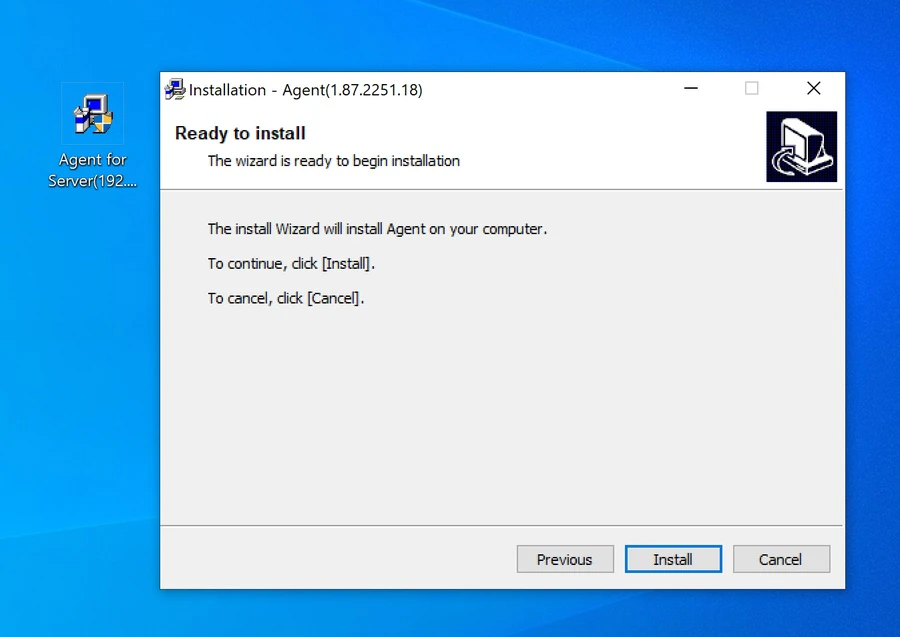
Step 2: Monitor application statistics.
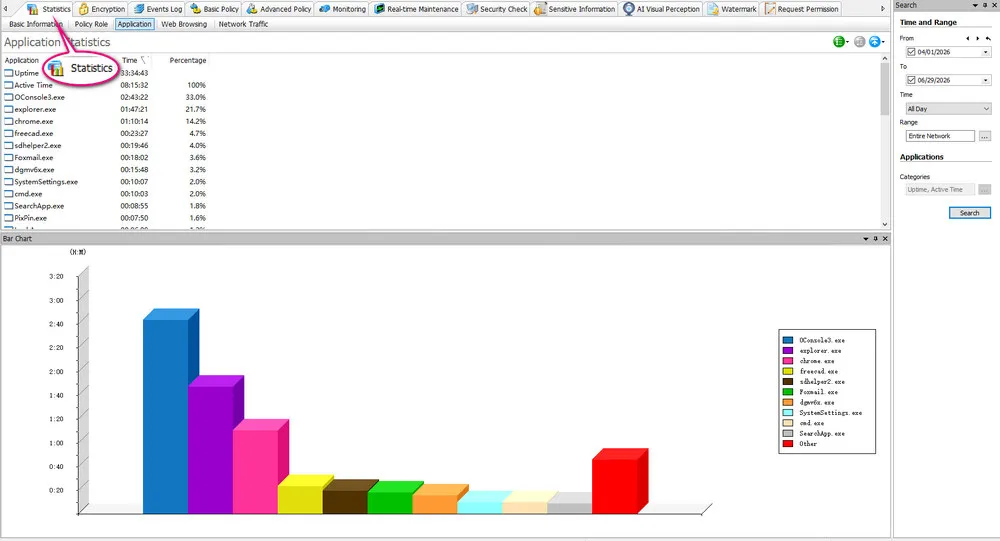
Open AnySecura Console, select "Statistics" > "Application" to monitor which apps are being used, how long they are used during a time, and the percentage.
Step 3: Monitor website statistics.
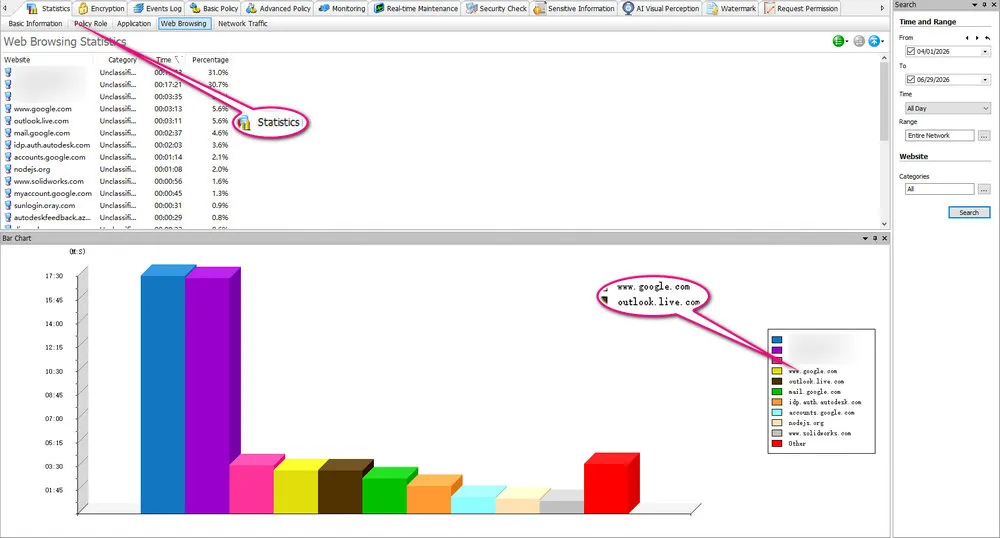
Select "Statistics" > "Web Browsing", the bar chart clearly shows which websites laptops visited and how much time they spent on them.
How to Identify Productivity Issues
Usage stats confirm that work laptops outside the office are active. For deeper work laptop activity monitoring, add work-hour logs and IM checks — the next layer beyond apps and websites.
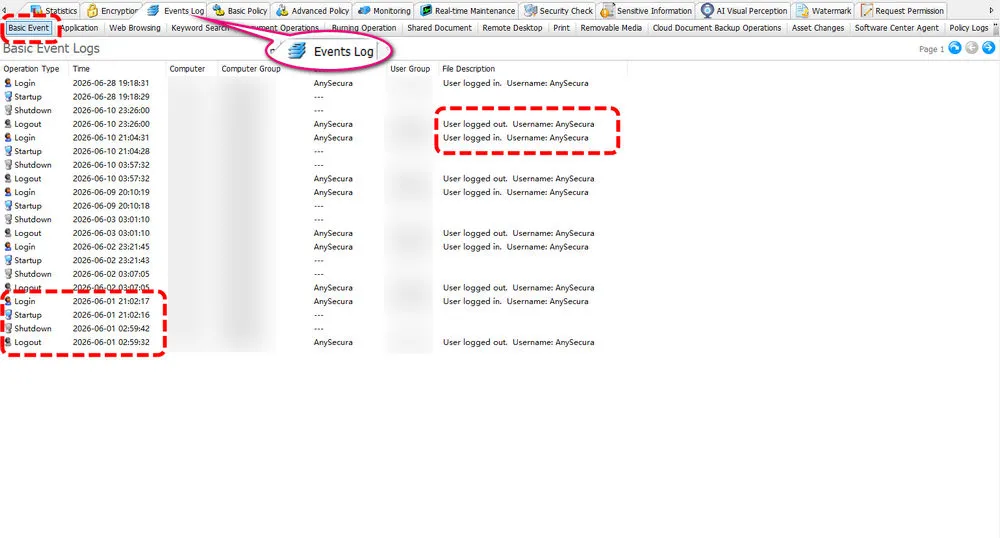
Step 1: Check working time.
Statistics tab gives you a general report of company laptops used outside the office. Next, you can go to "Event Log" > "Basic Event" to check laptop startup and shutdown, helping you understand whether your employees use the laptop as usual.
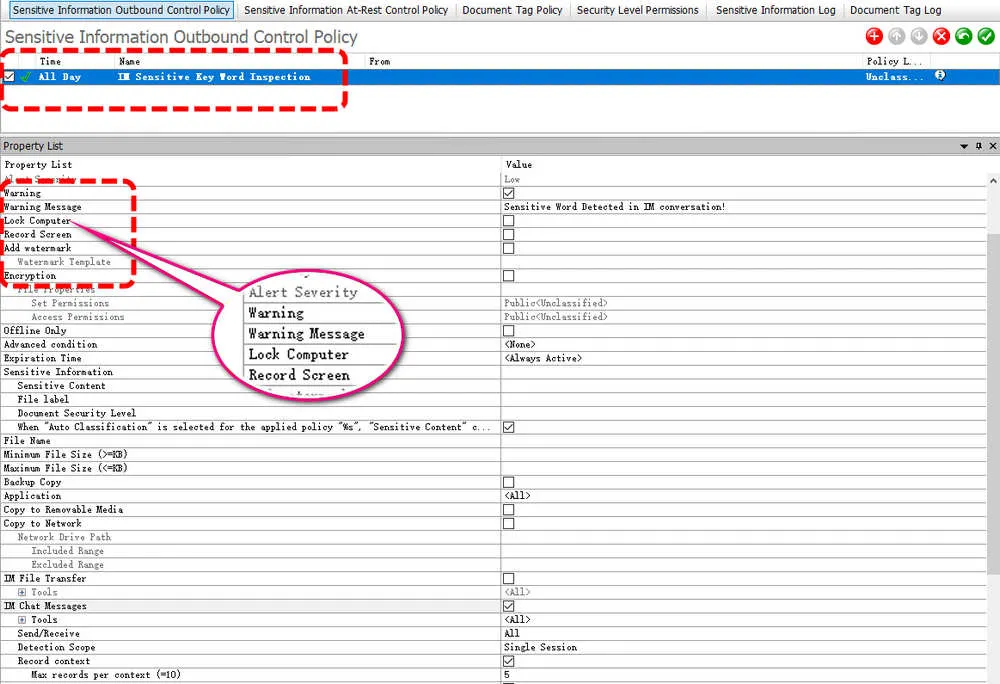
Step 2: Check conversations.
For employees working outside the office, online communication is necessary. Next, go to "Sensitive Information" > "Sensitive Information Outbound Control Policy" to set a custom keyword for IM apps. If non-work conversations are detected, a warning is triggered, and you will be notified and can also check the messages.
How to Detect Suspicious Laptop Activity
Then you can continue to review if there are any risky behaviors on the laptops outside the office by activity logs, including file transfer, USB inserting, system changes, app installation and more.
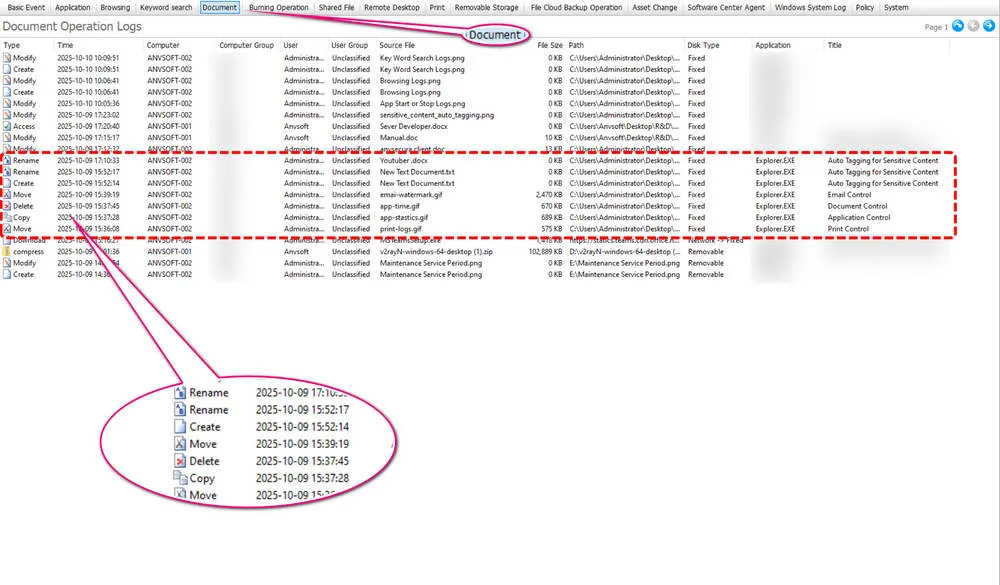
Step 1: Monitor file operations.
Choose "Event Log" > "Document Operation" to monitor if your company laptops are showing unusual behavior with important files. For example, delete, download or copy them without authorization.
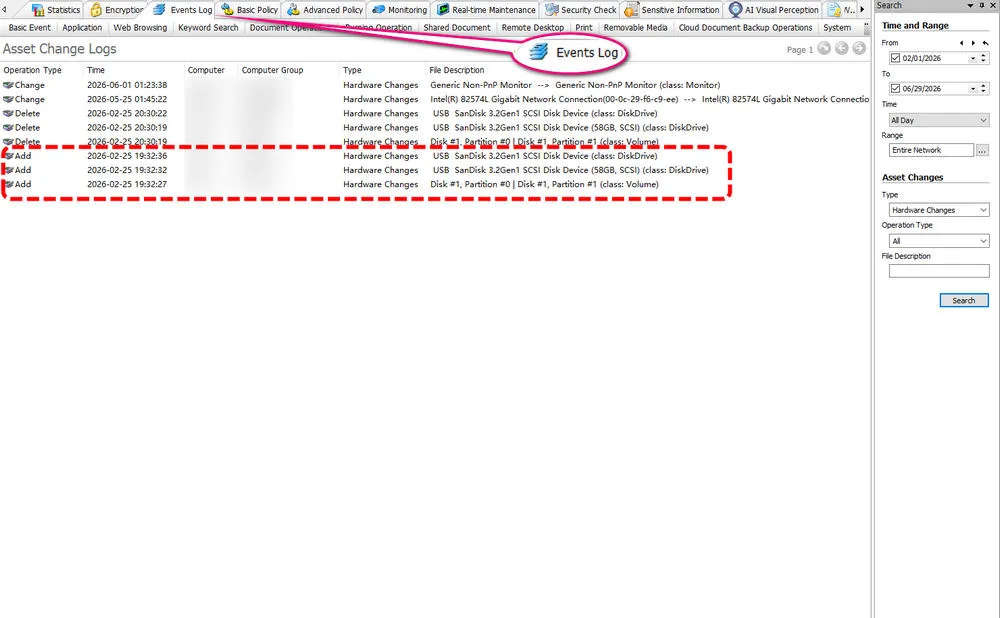
Step 2: Monitor USB changes.
Then select "Asset Change" under "Event Log" to check if other external devices such as USB flash drives are inserted into your laptop for file transfers.
Tips: To prevent data leaks, click "Basic Policy" > "Device Control" to enable the feature "Block All New USB Devices".
Step 3: Monitor software installation.
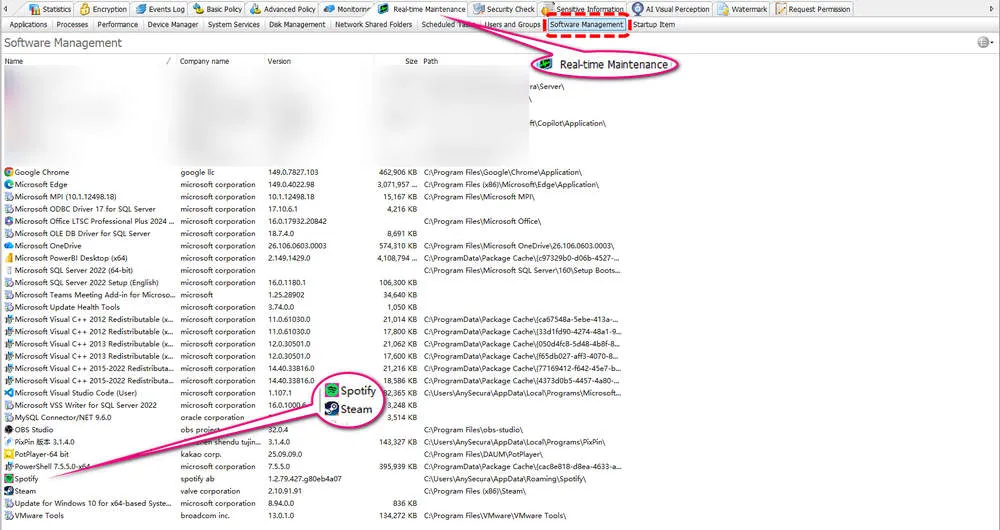
Then you can go to "Real-time Maintenance" > "Software Management" to check if there is any malicious software installed on your laptop outside the office and you can judge whether the person is your employees who is using it.
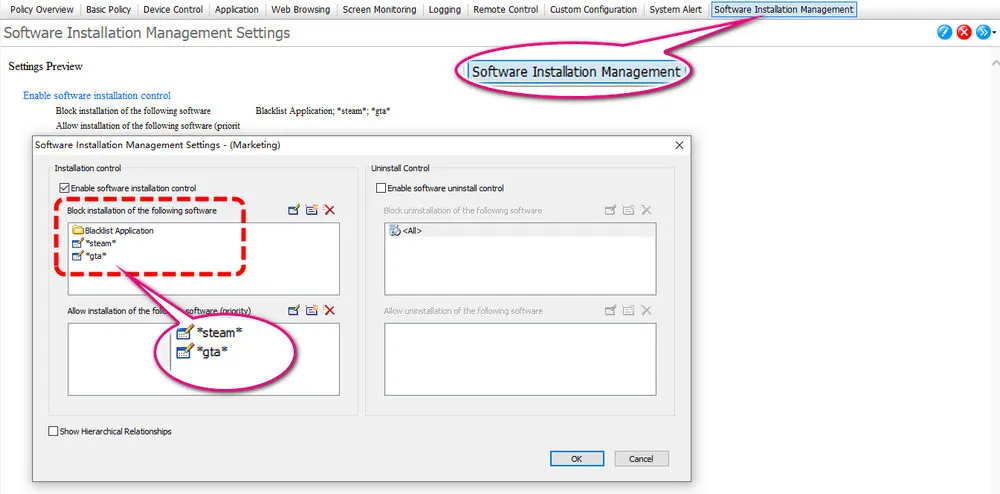
Tips: Click "Basic Policy" > "Software Installation Management" to block unauthorized app installation.
How to Investigate a Remote Laptop Incident
After checking the file transfer, application installation or other system change logs, you can verify the detailed operations by screenshots or screen recordings if there are any suspicious activities.
Step 1: Review screenshots.
AnySecura enables the screenshot feature to let you identify the computer usage in detail. In "Monitoring" > "Multi-Screen Monitoring", you can see screenshots on all your company laptops that AnySecura captures.
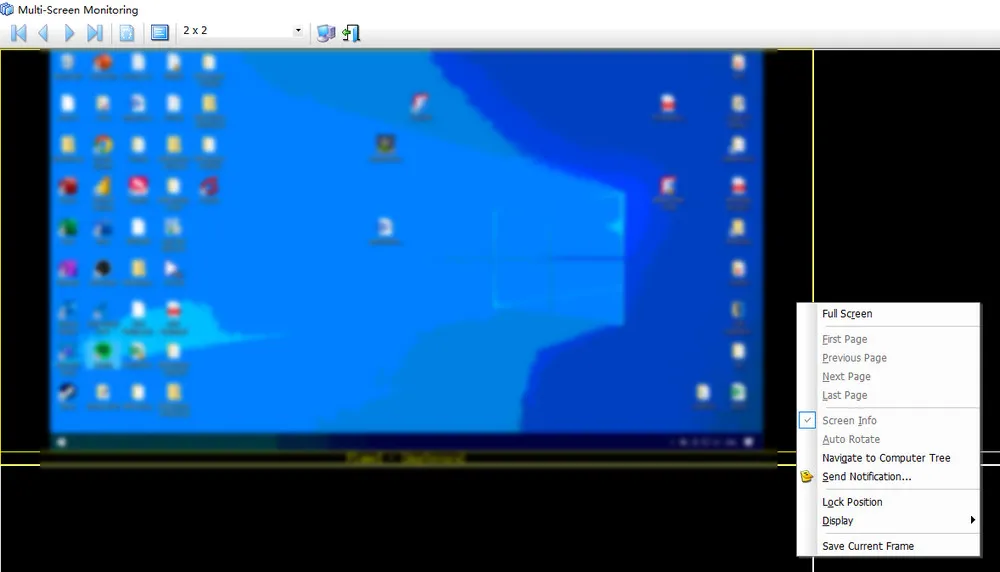
(Note: The image has been blurred.)
Step 2: Review screen recordings.
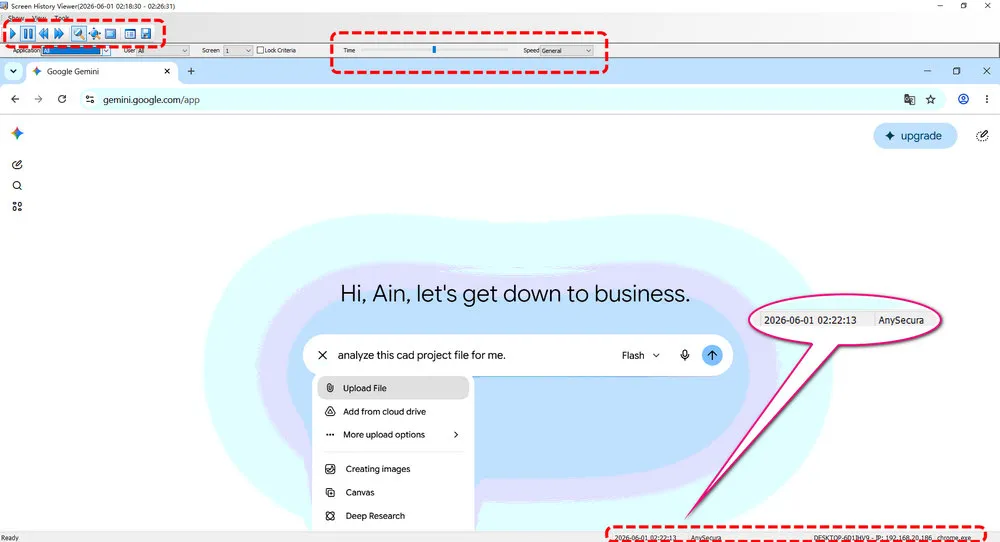
If needed, you can also go to "Monitoring" > "Search Screen History" to playback the full screen recordings anytime, making sure that your company laptops are being used well.

Review app usage, work hours, and device activity when laptops leave the office — without waiting for problems to surface.
FAQs About Monitor Remote Company Laptops
1. How can a company monitor employees working from home?
Start with usage reports, work hours, and app activity — the same signals covered in What to Monitor First. AnySecura pulls them together so you can review laptop usage, application activity, and website visits from one console.
2. Can I monitor remote laptops without being in the same location?
Yes. AnySecura lets you monitor company devices remotely from anywhere with an internet connection. You can monitor employee laptop activity remotely — check online status, review applications and websites, and investigate unusual events without needing physical access to the laptop.
3. Is it legal to monitor company laptops used outside the office?
In most regions, employers can monitor company-owned devices used for work — including laptops taken home or on the road — provided the monitoring is disclosed and limited to business purposes. Laws vary by country and state (for example, GDPR in the EU or state-level employee privacy rules in the U.S.), so document your policy, tell employees what is collected, and avoid monitoring personal accounts or off-hours activity unless your legal team approves it.
4. What if a remote laptop goes offline for days?
Check three things: whether the employee reported travel or leave, whether the device lost network connectivity, and whether the agent is still installed. AnySecura logs last-seen timestamps and startup/shutdown events, so you can tell the difference between someone on vacation and a laptop that hasn't checked in unexpectedly. If a device stays offline beyond your policy window, treat it as a security follow-up — not just a productivity question.
Final Words
Company laptops don't stop being company assets when they leave the office, and your visibility shouldn't stop either. Whether your team works from home, travels frequently, or follows a hybrid schedule, knowing how to monitor company laptops outside the office helps you manage productivity, address issues sooner, and make better decisions.
