
How do you know if someone has accessed your company device without permission? In many cases, unauthorized access isn't discovered until missing files or data leaks occur — which is already too late. Without proper monitoring, you have no idea what's happening across your company devices.
According to IBM's Cost of a Data Breach Report, the average data breach cost organizations $4.44 million globally — and many incidents start with an account that was never revoked or a device nobody was watching.
We know what concerns you and what you need. Now look at how to monitor unauthorized access to your company devices.
Part 1: Does Any of This Sound Familiar
How does unauthorized access typically happen in your company? In the everyday business environment, are the following scenarios the ones you worry about most?
Scenario 1: Former Employees Still Have Access
An employee leaves your company on Friday. Their laptop is returned, but their Microsoft 365 account, VPN access, or cloud permissions aren't removed immediately. And they can still access your system.
Scenario 2: Unapproved USB Devices
One of your employees needs to transfer a file quickly and plugs in a personal USB drive. The task takes only a few minutes, but you have no record of what files were copied, what data left the device, or whether any new files were introduced.
Scenario 3: Unauthorized Software Installations
If your employee reports a computer issue and asks a coworker for help, instead of notifying you, they install a remote access tool, file-sharing apps, or browser extensions to share their screen. And you can't even know what other apps they are running on company devices, making it harder to monitor.
Scenario 4: Devices Used Outside Approved Locations
Your employees may take company laptops home or use them while traveling. Both the company devices and data on those devices are invisible to you. They may be accessed by family members or unauthorized individuals without your approval.
" Today, I received an email from my boss asking why an ex-employee still had access to the data... " - r/cybersecurity
" I am tasked with implementing restrictions on USB access for employees... " - r/cybersecurity
" Now comes my biggest headache: access and control of the machines... " - r/sysadmin
...
Part 2: Common Mistakes That Create Unauthorized Access
Most of the time it's not a sophisticated attack — just gaps in how access gets managed day to day:
| Common Mistake | Why It Creates Risk | What to Do Instead |
|---|---|---|
| Inactive or delayed offboarding | Ex-employees keep cloud, VPN, and local access for days | Disable accounts on the last working day; HR triggers, IT confirms within 24 hours |
| Assuming a returned laptop is secure | Saved passwords and synced sessions stay live | Wipe or re-image before reassignment |
| Shared administrator account | Activity can't be tied to one person | Give each user their own login |
| Leaving devices unlocked | Anyone nearby can access the machine | Require auto-lock and a screen password |
| Using personal USB | File copies leave no audit trail | Log or block unapproved removable media |
| Never removing local admin | Users bypass software and policy controls | Remove standing local admin rights |
| Users installing own remote-access tools | TeamViewer and file-sharing apps go unaudited | Block installs not on your approved list |
| Treating cloud sign-in logs as full visibility | Local files, USB, and apps aren't logged | Add endpoint activity monitoring |
| Ignoring Windows audit logs | Login and change events never get reviewed | Enable audit policies and check them weekly |
Tightening these habits closes a lot of doors. It doesn't tell you who walked through the ones that stay open.
Not sure which of these gaps matter most for your org? Benchmark your insider risk maturity with this free 25-point checklist. Learn more>>
Part 3: What Should You Monitor to Stay in Control
That's where monitoring comes in — catching what policy alone won't stop. Start with four questions — who, what, when, and how — then check them in a fixed order. Jumping straight to screen recordings or random log files usually wastes time.
| Priority | Question | What to Check | Act When You See |
|---|---|---|---|
| 1 | Who used the device? | Login and logout times, active Windows/macOS accounts, VPN or cloud sign-ins tied to the same user | Unknown account, ex-employee still signed in, login from a user who was off that day |
| 2 | When and where? | Startup/shutdown logs, access outside agreed hours, device use off-site or on personal networks | Activity at 2 AM, weekend sessions with no ticket or project reason, laptop active while employee is on leave |
| 3 | What changed on the device? | Software installs, USB connections, file copies or deletions, remote-access tools | New TeamViewer or file-sharing app, bulk copy to external drive, sensitive folders opened then archived |
| 4 | How did access happen? | Shared credentials, unlocked devices, policy bypass (personal USB, unapproved Wi-Fi) | Same account on two machines at once, password sticky-note pattern, repeated failed logins then success |
Most routine reviews stop at priorities 1–3. Reserve deeper forensics — screen history, disk imaging — for when a log already points to a specific user, time, and action.
Employee offboarding: access checklist
Former employees who still have access are the most preventable gap. Run this on every last day, not "when IT has time":
- Disable AD / Microsoft 365 / Google Workspace account and reset any shared passwords they knew.
- Revoke VPN, RDP, and cloud app tokens (Slack, Dropbox, GitHub, etc.).
- Collect the laptop and verify the Agent or MDM still reports it — don't assume return equals secured.
- Review shared mailboxes, distribution lists, and file shares they owned or had edit rights on.
- Check startup logs for 7 days after departure — activity on a "returned" machine means someone else is using it or the account wasn't fully cut off.
Keep the checklist on one page in your IT runbook. Most breaches from ex-employees trace back to a skipped row, not a missing security product.
10-minute weekly access review (no software required)
Once a week, block 10 minutes and walk through your device list. A spreadsheet and your identity provider's sign-in report are enough to start:
- Any logins from accounts marked inactive or on leave?
- Any device active outside core hours more than once this week without a ticket reference?
- New software or USB events on machines that handle sensitive data?
- Anyone still on the access list who left in the last 30 days?
- If two signals line up on the same device (e.g., after-hours login and USB connection), open a same-day investigation — don't wait for monthly audit.
When you manage more than a handful of endpoints, pulling these signals by hand breaks down — that's when monitoring from a single dashboard saves the weekly chase.
Part 4: Traditional Methods for Monitoring Unauthorized Access
Search "how to monitor unauthorized access to company devices" and you'll see EDR, NAC, IAM, and built-in OS logs — often presented as if one tool covers everything. They aren't interchangeable. Each handles a different layer: who signed in, what's on the network, whether malware ran, or what changed locally on the laptop.
| Approach | What it does well | Where it falls short for unauthorized access |
|---|---|---|
| IAM / identity logs Microsoft Entra, Okta, AD sign-in reports |
Who authenticated, when, and from which IP — essential for cloud and VPN access | No visibility into local file copies, USB use, or software installed after login |
| NAC Network Access Control |
Blocks unapproved devices on the corporate network; enforces VLAN and posture checks | Doesn't see home-network use, offline activity, or what happens after a device is already inside |
| EDR Endpoint Detection and Response |
Malware, exploit chains, suspicious processes — strong for security incidents | Not built for "was this the right person on the laptop Tuesday evening?" or routine USB/file audit trails |
| Built-in OS logs Windows Event Viewer, macOS Unified Logs |
Free; useful for investigating one machine or meeting local retention rules | No central dashboard; collecting and correlating across dozens of laptops doesn't scale |
| Manual audits & spreadsheets | Works for tiny teams with a written offboarding checklist and weekly calendar block | Data goes stale within days; easy to miss after-hours or USB events nobody scheduled a review for |
| Dedicated endpoint monitoring e.g. AnySecura |
Login times, USB and file logs, software inventory, policy rules — identity and device signals in one console | Requires agent deployment and a disclosed monitoring policy; complements IAM/EDR rather than replacing them |
Most mid-size teams already have IAM and maybe EDR. The gap is usually local device behavior — what happened on the machine after someone signed in. That's where AnySecura fits: login times, USB and file logs, and software inventory in one console, alongside the IAM and EDR you already run.

Monitor logins, USB connections, file transfers, and software changes from one dashboard — anywhere, anytime.
Part 5: How to Monitor Company Devices from a Single Dashboard
In AnySecura, the W4H review maps to a few Console tabs — Event Log for logins, startup times, USB, and file changes; Software Management for unapproved installs. The steps below walk through setup and each one.
Step-by-step Tutorial:
Don't worry. Even if you are a beginner or lack technical expertise, you can simply follow our detailed setup steps to monitor your company devices for unauthorized access anytime and anywhere.
Step 1: Install Server, Console, and deploy Agent.
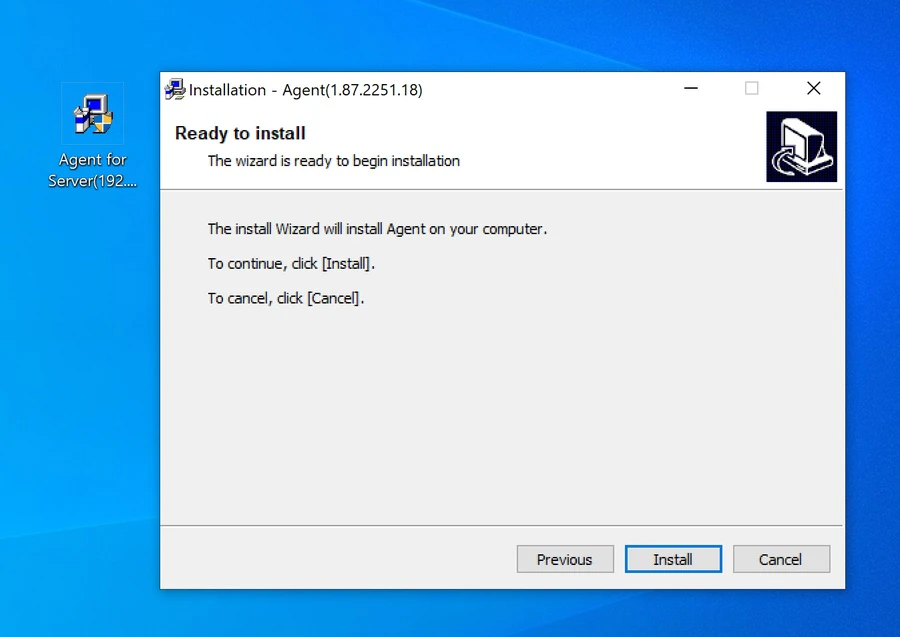
As a manager, you should install SQL Server on your computer. Next, install AnySecura Server and Console, and then register the Server. After the successful registration, you need to generate an AnySecura Agent installation package on your Admin computer. Transfer the Agent to your company devices for future monitoring.
For the detailed installation, please refer to: AnySecura Installation Guide
Step 2: Verify.
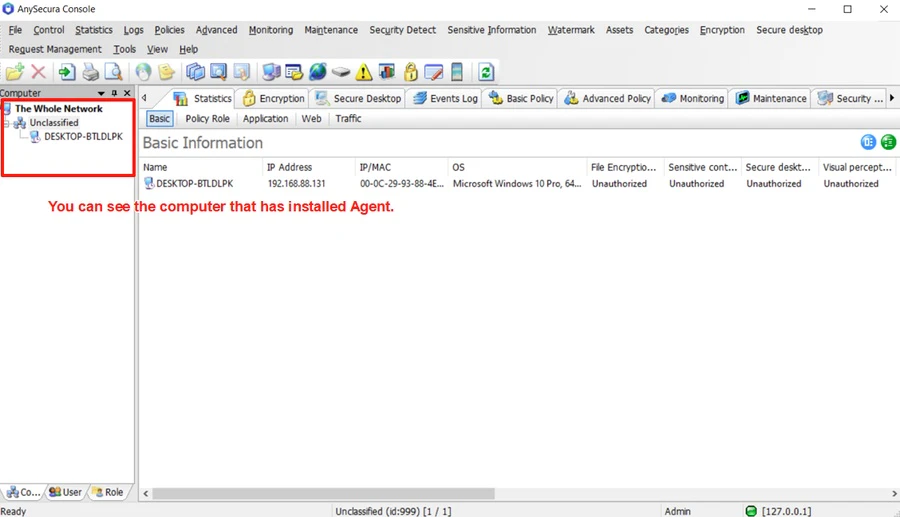
After deploying the Agent on your company devices, you can access and verify the device status in the AnySecura Console. Open the Console, you can see all your computers installed with the Agent here. On the upper tab, you can check "Event Log", "Basic Policy", "Advanced Policy" and more. Don't know what they are for now? Keep moving.
Step 3: Check startup and shutdown times.
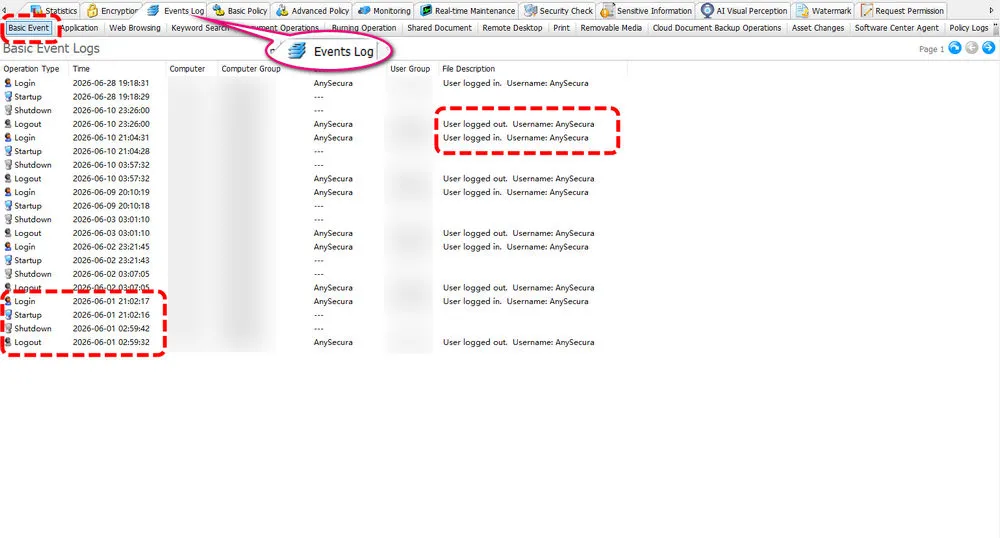
To monitor unauthorized access to company devices, you don't need to check all tabs one by one, just the important ones. First is when the devices are activated and who is using them.
For your AnySecura Console, click the devices you want to check from the left-side panel. Then select "Event Log" > "Basic Event". You can see startup, shutdown, login and logout times. It's very clear whether the company devices are used without permission.
Step 4: Monitor external devices.
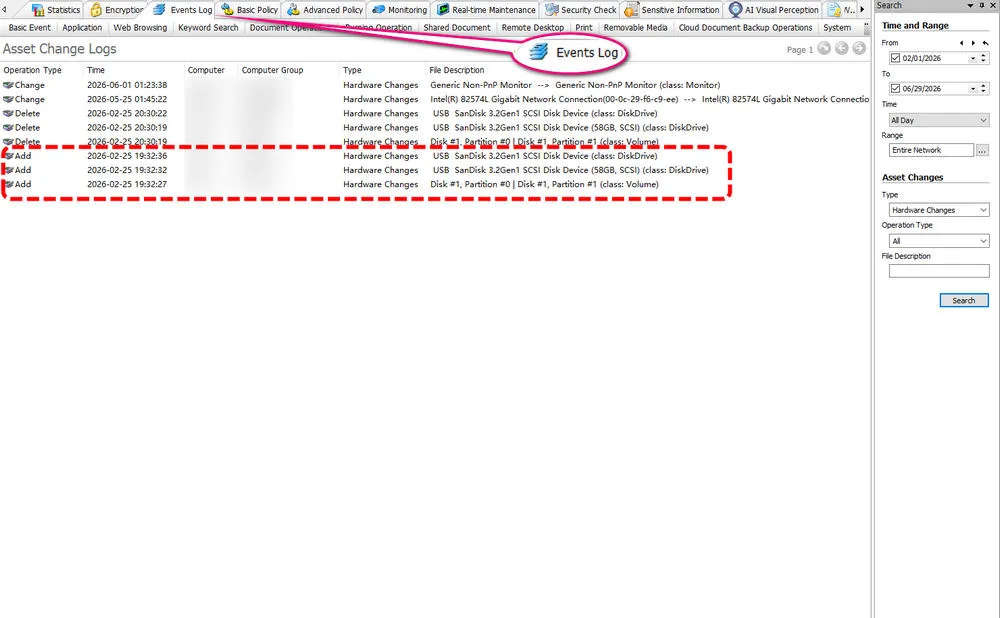
Still under the tab "Event Log", click "Asset Change", and view logs of connection records for external devices such as USB drives. Knowing when and who made the changes to ensure everything runs normally on company devices.
Step 5: Track document operations.
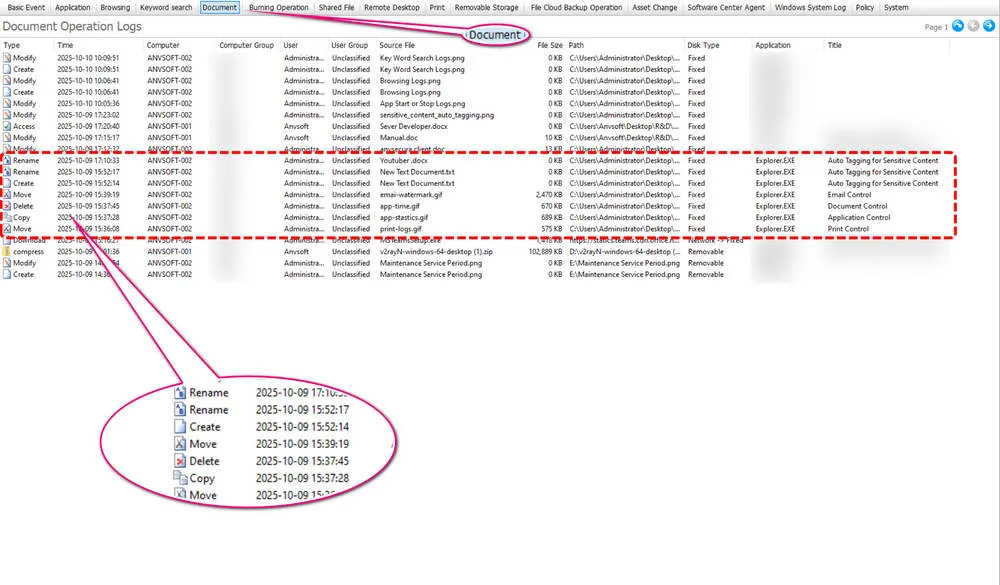
One of the most important things to monitor for unauthorized access is data security. Go to "Event Log" > "Document Operation", monitor who creates, moves, copies, downloads, or deletes a file from your company devices.
Step 6: View software installation.
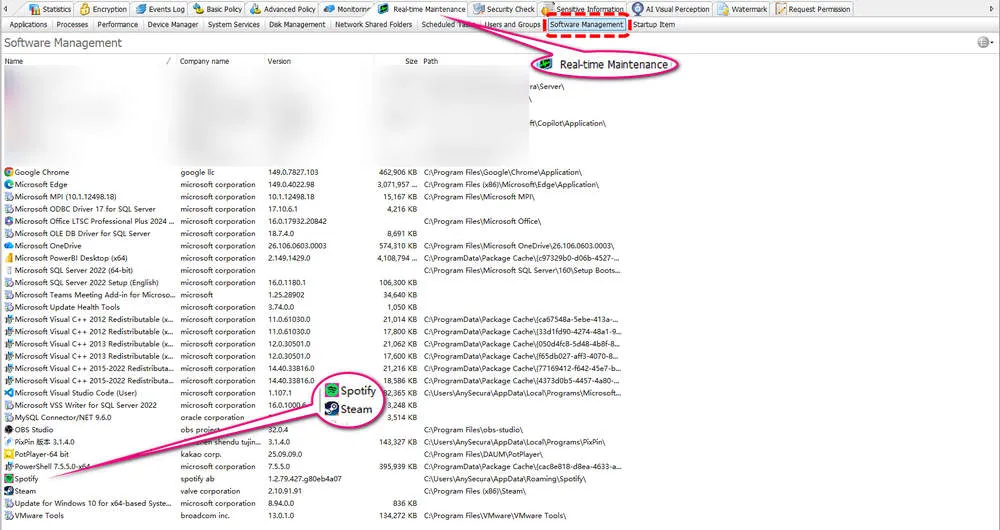
Tap "Real-time Maintenance" > "Software Management" to view if there are any unauthorized apps installed on company devices. You can check the software name, version, size, installation path and more.
Note: The steps above cover only a portion of the monitoring capabilities. AnySecura offers additional features such as blocking specific websites, disabling applications, and restricting USB data transfers. You can enable various functions based on your specific needs.
FAQs About Monitor Unauthorized Access
1. What should you monitor to detect unauthorized access?
Work in this order: identity and login times first, then device uptime and location patterns, then file, USB, and software changes. With AnySecura, the highest-yield tabs are Event Log (Basic Event, Asset Change, Document Operation) and Software Management — they cover most unauthorized-access scenarios without daily screen review.
2. How can I tell if someone accessed a company device without permission?
Look for overlapping signals — after-hours login plus USB activity, or an ex-employee account plus file copies on the same day. One odd event might be innocent; two on the same device usually isn't.
3. Can unauthorized access be detected remotely?
Yes. If your company devices are enrolled in a centralized monitoring solution like AnySecura, you can review device activity, software changes, and user actions remotely without needing physical access to each device.
4. Is monitoring employee devices legal?
It depends on local employment and privacy laws. In most regions, monitoring company-owned devices for security is allowed when employees are informed, consent or notice requirements are met, and scope stays tied to business purposes — not personal devices or off-duty browsing on BYOD. Put your policy in writing before deploying agents.
5. How often should I review devices for unauthorized access?
A 10-minute weekly pass is enough for most teams. Investigate the same day when two warning signals hit one device — don't wait for a monthly audit.
Final Words
Unauthorized access is hard to spot because it rarely triggers an immediate alert — and identity logs alone won't show you who copied files to a USB at midnight.
Close the habit gaps first, keep a short weekly review going, and use AnySecura when manual checks stop scaling. Event Log and Software Management cover most of what you need — without replacing the IAM or EDR tools you already have.
